> For the complete documentation index, see [llms.txt](https://run-ai-docs.nvidia.com/llms.txt). Markdown versions of documentation pages are available by appending `.md` to page URLs; this page is available as [Markdown](https://run-ai-docs.nvidia.com/saas/infrastructure-setup/authentication/sso/openidconnect.md).
# Set Up SSO with OpenID Connect
Single Sign-On (SSO) is an authentication scheme, allowing users to log-in with a single pair of credentials to multiple, independent software systems.
This guide explains the procedure to [configure SSO to NVIDIA Run:ai](/saas/infrastructure-setup/authentication/overview.md#single-sign-on-sso) using the OpenID Connect protocol.
## Prerequisites
Before you start, make sure you have the following available from your identity provider:
* Discovery URL - The OpenID server where the content discovery information is published.
* ClientID - The ID used to identify the client with the Authorization Server.
* Client Secret - A secret password that only the Client and Authorization server know.
* Optional: Scopes - A set of user attributes to be used during authentication to authorize access to a user's details.
## Setup
### Adding the Identity Provider
1. Go to **General settings**
2. Open the Security section and click **+IDENTITY PROVIDER**
3. Select **Custom OpenID Connect**
4. Enter the **Discovery URL**, **Client ID**, and **Client Secret**
5. Copy the Redirect URL to be used in your identity provider
6. Optional: Add the OIDC scopes
7. Optional: Enter the user attributes and their value in the identity provider as shown in the below table
8. Click **SAVE**
9. Optional: Enable **Auto-Redirect to SSO** to automatically redirect users to your configured identity provider’s login page when accessing the platform.
| Attribute | Default value in NVIDIA Run:ai | Description |
| -------------------- | ------------------------------ | ------------------------------------------------------------------------------------------------------------------------------------------------------------------------------------------------------------- |
| User role groups | GROUPS | If it exists in the IDP, it allows you to assign NVIDIA Run:ai role groups via the IDP. The IDP attribute must be a list of strings or an object where the group names are the values. |
| Linux User ID | UID | If it exists in the IDP, it allows Researcher containers to start with the Linux User UID. Used to map access to network resources such as file systems to users. The IDP attribute must be a numeric string. |
| Linux Group ID | GID | If it exists in the IDP, it allows Researcher containers to start with the Linux Group GID. The IDP attribute must be a numeric string. |
| Supplementary Groups | SUPPLEMENTARYGROUPS | If it exists in the IDP, it allows Researcher containers to start with the relevant Linux supplementary groups. The IDP attribute must be a list of numeric strings. |
| Email | email | Defines the user attribute in the IDP holding the user's email address, which is the user identifier in NVIDIA Run:ai |
| User first name | firstName | Used as the user’s first name appearing in the NVIDIA Run:ai user interface |
| User last name | lastName | Used as the user’s last name appearing in the NVIDIA Run:ai user interface |
### Testing the Setup
1. Log in to the NVIDIA Run:ai platform as an admin
2. Add [access rules](/saas/infrastructure-setup/authentication/accessrules.md) to an SSO user defined in the IDP
3. Open the NVIDIA Run:ai platform in an incognito browser tab
4. On the sign-in page click **CONTINUE WITH SSO**\
You are redirected to the identity provider sign in page
5. In the identity provider sign-in page, log in with the SSO user who you granted with access rules
6. If you are unsuccessful signing-in to the identity provider, follow the [Troubleshooting](#troubleshooting) section below
### Editing the Identity Provider
You can view the identity provider details and edit its configuration:
1. Go to **General settings**
2. Open the Security section
3. On the identity provider box, click **Edit identity provider**
4. You can edit either the **Discovery URL**, **Client ID**, **Client Secret**, **OIDC scopes**, or the **User attributes**
### Removing the Identity Provider
You can remove the identity provider configuration:
1. Go to **General settings**
2. Open the Security section
3. On the identity provider card, click **Remove identity provider**
4. In the dialog, click **REMOVE** to confirm the action
{% hint style="info" %}
**Note**
To avoid losing access, removing the identity provider must be carried out by a local user.
{% endhint %}
## Troubleshooting
If testing the setup was unsuccessful, try the different troubleshooting scenarios according to the error you received.
### Troubleshooting Scenarios
Error: "403 - Sorry, we can’t let you see this page. Something about permissions…"
**Description:** The authenticated user is missing permissions
**Mitigation**:
1. Validate either the user or its related group/s are assigned with [access rules](/saas/infrastructure-setup/authentication/accessrules.md)
2. Validate groups attribute is available in the configured OIDC Scopes
3. Validate the user’s groups attribute is mapped correctly
**Advanced:**
1. Open the Chrome DevTools: Right-click on page → Inspect → Console tab
2. Run the following command to retrieve and paste the user’s token: `localStorage.token;`
3. Paste in [https://jwt.io](https://jwt.io/)
4. Under the Payload section validate the values of the user’s attribute
Error: "401 - We’re having trouble identifying your account because your email is incorrect or can’t be found."
**Description:** Authentication failed because email attribute was not found.
**Mitigation**:
1. Validate email attribute is available in the configured OIDC Scopes
2. Validate the user’s email attribute is mapped correctly
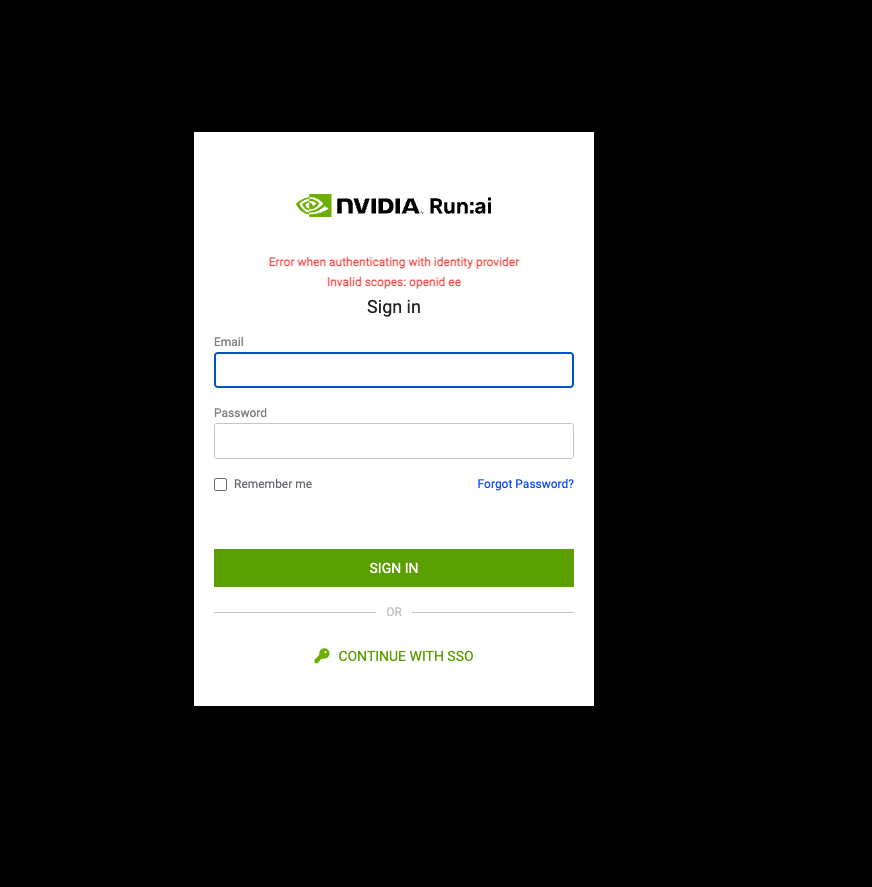
Error: "Unexpected error when authenticating with identity provider"
**Description:** User authentication failed
**Mitigation**: Validate the configured OIDC Scopes exist and match the Identity Provider’s available scopes
**Advanced:** Look for the specific error message in the URL address
Error: "Unexpected error when authenticating with identity provider (SSO sign-in is not available)"
**Description:** User authentication failed
**Mitigation**:
1. Validate the configured OIDC scope exists in the Identity Provider
2. Validate the configured Client Secret match the Client Secret in the Identity Provider
**Advanced:** Look for the specific error message in the URL address
Error: "Client not found"
**Description:** OIDC Client ID was not found in the Identity Provider
**Mitigation**: Validate the configured Client ID matches the Identity Provider Client ID
---
# Agent Instructions
This documentation is published with GitBook. GitBook is the documentation platform designed so that both humans and AI agents can read, navigate, and reason over technical content effectively. Learn more at gitbook.com.
## Querying This Documentation
If you need additional information that is not directly available in this page, you can query the documentation dynamically by asking a question.
Perform an HTTP GET request on the current page URL with the `ask` query parameter, and the optional `goal` query parameter:
```
GET https://run-ai-docs.nvidia.com/saas/infrastructure-setup/authentication/sso/openidconnect.md?ask=&goal=
```
`ask` is the immediate question: it should be specific, self-contained, and written in natural language.
`goal` is optional and describes the broader end goal you are ultimately trying to accomplish on behalf of the user. GitBook uses it to tailor the answer towards what is most useful for that goal.
The response will contain a direct answer to the question and relevant excerpts and sources from the documentation.
Use this mechanism when the answer is not explicitly present in the current page, you need clarification or additional context, or you want to retrieve related documentation sections.