> For the complete documentation index, see [llms.txt](https://run-ai-docs.nvidia.com/llms.txt). Markdown versions of documentation pages are available by appending `.md` to page URLs; this page is available as [Markdown](https://run-ai-docs.nvidia.com/self-hosted/2.20/infrastructure-setup/procedures/clusters.md).
# Clusters
This section explains the procedure to view and manage Clusters.
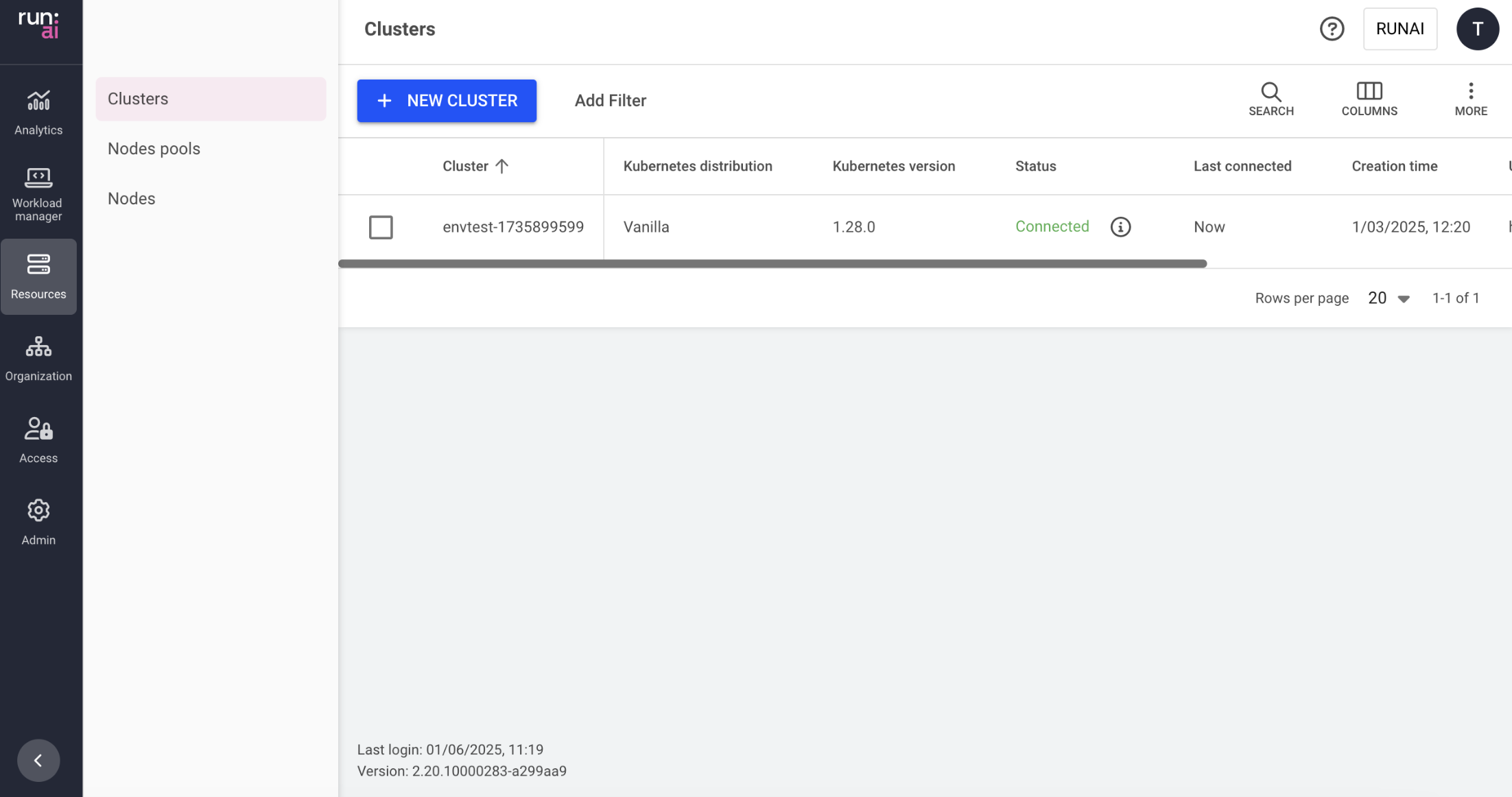
The Cluster table provides a quick and easy way to see the status of your cluster.
## Clusters Table
The Clusters table can be found under **Resources** in the NVIDIA Run:ai platform.
The clusters table provides a list of the clusters added to NVIDIA Run:ai platform, along with their status.
The clusters table consists of the following columns:
| Column | Description |
| ----------------------------- | ---------------------------------------------------------------------------------------------------------------------------------------------------------------------------- |
| Cluster | The name of the cluster |
| Status | The status of the cluster. For more information see the [table below](#cluster-status). Hover over the information icon for a short description and links to troubleshooting |
| Creation time | The timestamp when the cluster was created |
| URL | The URL that was given to the cluster |
| NVIDIA Run:ai cluster version | The NVIDIA Run:ai version installed on the cluster |
| Kubernetes distribution | The flavor of Kubernetes distribution |
| Kubernetes version | The version of Kubernetes installed |
| NVIDIA Run:ai cluster UUID | The unique ID of the cluster |
### Cluster status
| Status | Description |
| --------------------- | ----------------------------------------------------------------------------------------------------------------------------------------------------------------------------------------- |
| Waiting to connect | The cluster has never been connected. |
| Disconnected | There is no communication from the cluster to the Control plane. This may be due to a network issue. [See troubleshooting scenarios.](#troubleshooting-scenarios) |
| Missing prerequisites | Some prerequisites are missing from the cluster. As a result, some features may be impacted. [See troubleshooting scenarios.](#troubleshooting-scenarios) |
| Service issues | At least one of the services is not working properly. You can view the list of nonfunctioning services for more information. [See troubleshooting scenarios.](#troubleshooting-scenarios) |
| Connected | The NVIDIA Run:ai cluster is connected, and all NVIDIA Run:ai services are running. |
### Customizing the Table View
* Filter - Click ADD FILTER, select the column to filter by, and enter the filter values
* Search - Click SEARCH and type the value to search by
* Sort - Click each column header to sort by
* Column selection - Click COLUMNS and select the columns to display in the table
* Download table - Click MORE and then Click Download as CSV. Export to CSV is limited to 20,000 rows.
## Adding a New Cluster
To add a new cluster, see the [installation guide](/self-hosted/2.20/getting-started/installation/install-using-helm/helm-install.md).
## Removing a Cluster
1. Select the cluster you want to remove
2. Click **REMOVE**
3. A dialog appears: Make sure to carefully read the message before removing
4. Click **REMOVE** to confirm the removal.
## Using API
Go to the [Clusters](https://run-ai-docs.nvidia.com/api/2.20/organizations/clusters) API reference to view the available actions.
## Troubleshooting
Before starting, make sure you have access to the Kubernetes cluster where NVIDIA Run:ai is deployed with the necessary permissions
### Troubleshooting Scenarios
Cluster disconnected
**Description:** When the cluster's status is 'disconnected', there is no communication from the cluster services reaching the NVIDIA Run:ai Platform. This may be due to networking issues or issues with NVIDIA Run:ai services.
**Mitigation:**
1. Check NVIDIA Run:ai's services status:
1. Open your terminal
2. Make sure you have access to the Kubernetes cluster with permissions to view pods
3. Copy and paste the following command to verify that NVIDIA Run:ai's services are running:
```bash
kubectl get pods -n runai | grep -E 'runai-agent|cluster-sync|assets-sync'
```
4. If any of the services are not running, see the 'cluster has service issues' scenario.
2. **Check the network connection**
1. Open your terminal
2. Make sure you have access to the Kubernetes cluster with permissions to create pods
3. Copy and paste the following command to create a connectivity check pod:
```bash
kubectl run control-plane-connectivity-check -n runai --image=wbitt/network-multitool --command -- /bin/sh -c 'curl -sSf > /dev/null && echo "Connection Successful" || echo "Failed connecting to the Control Plane"'
```
4. Replace `` with the URL of the Control Plane in your environment. If the pod fails to connect to the Control Plane, check for potential network policies
3. **Check and modify the network policies**
1. Open your terminal
2. Copy and paste the following command to check the existence of network policies:
```bash
kubectl get networkpolicies -n runai
```
3. Review the policies to ensure that they allow traffic from the NVIDIA Run:ai namespace to the Control Plane. If necessary, update the policies to allow the required traffic
Example of allowing traffic:
```yaml
apiVersion: networking.k8s.io/v1
kind: NetworkPolicy
metadata:
name: allow-control-plane-traffic
namespace: runai
spec:
podSelector:
matchLabels:
app: runai
policyTypes:
- Ingress
- Egress
egress:
- to:
- ipBlock:
cidr:
ports:
- protocol: TCP
port:
ingress:
- from:
- ipBlock:
cidr:
ports:
- protocol: TCP
port:
```
4. Check infrastructure-level configurations:
* Ensure that firewall rules and security groups allow traffic between your Kubernetes cluster and the Control Plane
* Verify required ports and protocols:
* Ensure that the necessary ports and protocols for NVIDIA Run:ai's services are not blocked by any firewalls or security groups
4. **Check NVIDIA Run:ai services logs**
1. Open your terminal
2. Make sure you have access to the Kubernetes cluster with permissions to view logs
3. Copy and paste the following commands to view the logs of the NVIDIA Run:ai services:
```bash
kubectl logs deployment/runai-agent -n runai
kubectl logs deployment/cluster-sync -n runai
kubectl logs deployment/assets-sync -n runai
```
4. Try to identify the problem from the logs. If you cannot resolve the issue, continue to the next step.
5. **Diagnosing internal network issues:**\
NVIDIA Run:ai operates on Kubernetes, which uses its internal subnet and DNS services for communication between pods and services. If you find connectivity issues in the logs, the problem might be related to Kubernetes' internal networking.
To diagnose DNS or connectivity issues, you can start a debugging {{glossary.Pod}} with networking utilities:
1. Copy the following command to your terminal, to start a pod with networking tools:
```bash
kubectl run -i --tty netutils --image=dersimn/netutils -- bash
```
This command creates an interactive pod (`netutils`) where you can use networking commands like `ping`, `curl`, `nslookup`, etc., to troubleshoot network issues.
2. Use this pod to perform network resolution tests and other diagnostics to identify any DNS or connectivity problems within your Kubernetes {{glossary.Cluster}}.
6. **Contact NVIDIA Run:ai's support**
* If the issue persists, [contact NVIDIA Run:ai's support](https://www.nvidia.com/en-eu/support/enterprise/#contact-us) for assistance.
Cluster has service issues
**Description:** When a cluster's status is 'Has service issues\`, it means that one or more NVIDIA Run:ai services running in the cluster are not available.
**Mitigation:**
1. **Verify non-functioning services**
1. Open your terminal
2. Make sure you have access to the Kubernetes cluster with permissions to view the `runaiconfig` resource
3. Copy and paste the following command to determine which services are not functioning:
```bash
kubectl get runaiconfig -n runai runai -ojson | jq -r '.status.conditions | map(select(.type == "Available"))'
```
2. **Check for Kubernetes events**
1. Open your terminal
2. Make sure you have access to the Kubernetes cluster with permissions to view events
3. Copy and paste the following command to get all [Kubernetes events](https://kubernetes.io/docs/reference/kubernetes-api/cluster-resources/event-v1/):
```bash
kubectl get events -A
```
3. **Inspect resource details**
1. Open your terminal
2. Make sure you have access to the Kubernetes cluster with permissions to describe resources
3. Copy and paste the following command to check the details of the required resource:
```bash
kubectl describe
```
4. **Contact NVIDIA Run:ai's Support**
* If the issue persists, contact [contact NVIDIA Run:ai's support](https://www.nvidia.com/en-eu/support/enterprise/#contact-us) for assistance.
Cluster is waiting to connect
**Description:** When the cluster's status is 'waiting to connect', it means that no communication from the cluster services reaches the NVIDIA Run:ai Platform. This may be due to networking issues or issues with NVIDIA Run:ai services.
**Mitigation:**
1. **Check NVIDIA Run:ai's services status**
1. Open your terminal
2. Make sure you have access to the Kubernetes cluster with permissions to view pods
3. Copy and paste the following command to verify that NVIDIA Run:ai's services are running:
```bash
kubectl get pods -n runai | grep -E 'runai-agent|cluster-sync|assets-sync'
```
4. If any of the services are not running, see the 'cluster has service issues' scenario.
2. **Check the network connection**
1. Open your terminal
2. Make sure you have access to the Kubernetes cluster with permissions to create pods
3. Copy and paste the following command to create a connectivity check pod:
```bash
kubectl run control-plane-connectivity-check -n runai --image=wbitt/network-multitool --command -- /bin/sh -c 'curl -sSf > /dev/null && echo "Connection Successful" || echo "Failed connecting to the Control Plane"'
```
4. Replace `` with the URL of the Control Plane in your environment. If the pod fails to connect to the Control Plane, check for potential network policies:
3. **Check and modify the network policies**
1. Open your terminal
2. Copy and paste the following command to check the existence of network policies:
```bash
kubectl get networkpolicies -n runai
```
3. Review the policies to ensure that they allow traffic from the NVIDIA Run:ai namespace to the Control Plane. If necessary, update the policies to allow the required traffic
4. Example of allowing traffic:
```yaml
apiVersion: networking.k8s.io/v1
kind: NetworkPolicy
metadata:
name: allow-control-plane-traffic
namespace: runai
spec:
podSelector:
matchLabels:
app: runai
policyTypes:
- Ingress
- Egress
egress:
- to:
- ipBlock:
cidr:
ports:
- protocol: TCP
port:
ingress:
- from:
- ipBlock:
cidr:
ports:
- protocol: TCP
port:
```
5. Check infrastructure-level configurations:
6. Ensure that firewall rules and security groups allow traffic between your Kubernetes cluster and the Control Plane
7. Verify required ports and protocols:
* Ensure that the necessary ports and protocols for NVIDIA Run:ai's services are not blocked by any firewalls or security groups
4. **Check NVIDIA Run:ai services logs**
1. Open your terminal
2. Make sure you have access to the Kubernetes cluster with permissions to view logs
3. Copy and paste the following commands to view the logs of the NVIDIA Run:ai services:
```bash
kubectl logs deployment/runai-agent -n runai
kubectl logs deployment/cluster-sync -n runai
kubectl logs deployment/assets-sync -n runai
```
4. Try to identify the problem from the logs. If you cannot resolve the issue, continue to the next step
5. **Contact NVIDIA Run:ai's support**
* If the issue persists, [contact NVIDIA Run:ai's support](https://www.nvidia.com/en-eu/support/enterprise/#contact-us) for assistance
Cluster is missing prerequisites
**Description:** When a cluster's status displays Missing prerequisites, it indicates that at least one of the Mandatory Prerequisites has not been fulfilled. In such cases, NVIDIA Run:ai services may not function properly.
**Mitigation:**
If you have ensured that all prerequisites are installed and the status still shows *missing prerequisites*, follow these steps:
1. Check the message in the NVIDIA Run:ai platform for further details regarding the missing prerequisites.
2. **Inspect the** `runai-public` ConfigMap:
1. Open your terminal. In the terminal, type the following command to list all ConfigMaps in the `runai` namespace:
```bash
kubectl get configmap runai-public -n runai
```
3. **Describe the ConfigMap**
1. Locate the ConfigMap named `runai-public` from the list
2. To view the detailed contents of this ConfigMap, type the following command:
```bash
kubectl describe configmap runai-public -n runai
```
4. **Find Missing Prerequisites**
1. In the output displayed, look for a section labeled `dependencies.required`
2. This section provides detailed information about any missing resources or prerequisites. Review this information to identify what is needed
5. **Contact NVIDIA Run:ai's support**
* If the issue persists, [contact NVIDIA Run:ai's support](https://www.nvidia.com/en-eu/support/enterprise/#contact-us) for assistance
---
# Agent Instructions
This documentation is published with GitBook. GitBook is the documentation platform designed so that both humans and AI agents can read, navigate, and reason over technical content effectively. Learn more at gitbook.com.
## Querying This Documentation
If you need additional information that is not directly available in this page, you can query the documentation dynamically by asking a question.
Perform an HTTP GET request on the current page URL with the `ask` query parameter, and the optional `goal` query parameter:
```
GET https://run-ai-docs.nvidia.com/self-hosted/2.20/infrastructure-setup/procedures/clusters.md?ask=&goal=
```
`ask` is the immediate question: it should be specific, self-contained, and written in natural language.
`goal` is optional and describes the broader end goal you are ultimately trying to accomplish on behalf of the user. GitBook uses it to tailor the answer towards what is most useful for that goal.
The response will contain a direct answer to the question and relevant excerpts and sources from the documentation.
Use this mechanism when the answer is not explicitly present in the current page, you need clarification or additional context, or you want to retrieve related documentation sections.