# Departments

This section explains the procedure for managing departments

Departments are a grouping of projects. By grouping projects into a department, you can set quota limitations to a set of projects, create policies that are applied to the department, and create assets that can be scoped to the whole department or a partial group of descendent projects

For example, in an academic environment, a department can be the Physics Department grouping various projects (AI Initiatives) within the department, or grouping projects where each project represents a single student.

## Departments Table

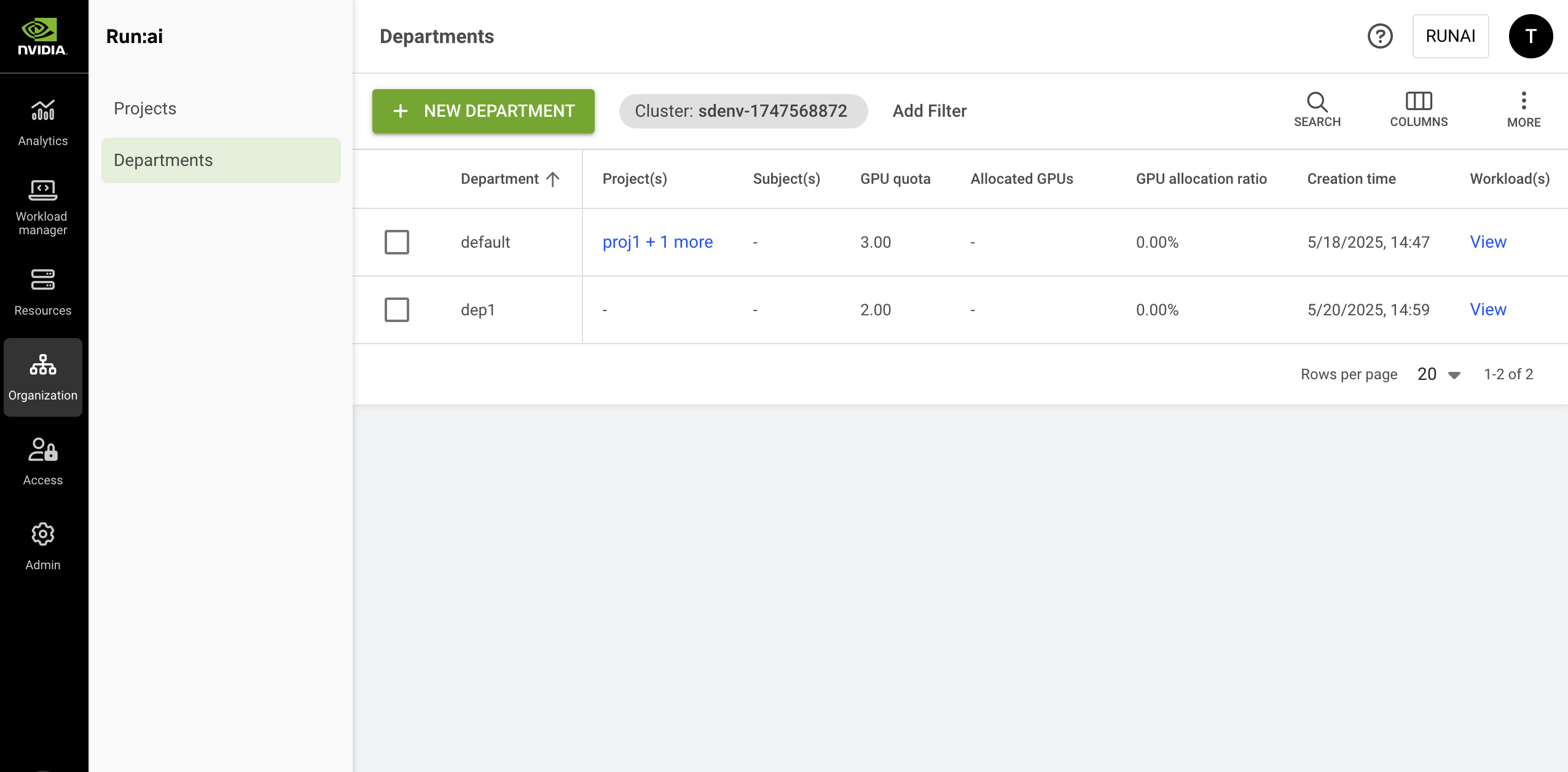
The Departments table can be found under **Organization** in the NVIDIA Run:ai platform.

The Departments table lists all departments defined for a specific cluster and allows you to manage them. You can switch between clusters by selecting your cluster using the filter at the top.

<figure><img src="https://3765967871-files.gitbook.io/~/files/v0/b/gitbook-x-prod.appspot.com/o/spaces%2FlZD4O0TqiQ8mlhnxho0w%2Fuploads%2Fgit-blob-53b8596110c1f9f13fdd4439be4ed8c5326a8403%2Fdepartments-new.png?alt=media" alt=""><figcaption></figcaption></figure>

The Departments table consists of the following columns:

| Column                      | Description                                                                                                                                                                                                                                                                                                                                                                                           |
| --------------------------- | ----------------------------------------------------------------------------------------------------------------------------------------------------------------------------------------------------------------------------------------------------------------------------------------------------------------------------------------------------------------------------------------------------- |
| Department                  | The name of the department                                                                                                                                                                                                                                                                                                                                                                            |
| Description                 | A description of the department                                                                                                                                                                                                                                                                                                                                                                       |
| Node pool(s)                | The node pools associated with this department. By default, all node pools within a cluster are associated with each department. Administrators can change the node pools’ quota parameters for a department. Click the values under this column to view the list of node pools with their parameters (as described below)                                                                            |
| Cluster                     | The cluster that the department is associated with                                                                                                                                                                                                                                                                                                                                                    |
| Project(s)                  | List of projects associated with this department                                                                                                                                                                                                                                                                                                                                                      |
| Subject(s)                  | The users, SSO groups, or applications with access to the project. Click the values under this column to view the list of subjects with their parameters (as described below). This column is only viewable if your role in NVIDIA Run:ai platform allows you those permissions.                                                                                                                      |
| GPU quota                   | GPU quota associated with the department                                                                                                                                                                                                                                                                                                                                                              |
| Allocated GPUs              | The total number of GPUs allocated by successfully scheduled workloads in projects associated with this department                                                                                                                                                                                                                                                                                    |
| Avg. GPU allocation         | The average number of GPU devices allocated by workloads submitted within this department, based on the selected time range.                                                                                                                                                                                                                                                                          |
| Avg. GPU utilization        | The average percentage of GPU utilization across all workloads submitted within this department, based on the selected time range.                                                                                                                                                                                                                                                                    |
| Avg. GPU memory utilization | The average percentage of GPU memory usage across all workloads submitted within this department, based on the selected time range.                                                                                                                                                                                                                                                                   |
| Allocated CPUs (Core)       | The total number of CPU cores allocated by workloads submitted within this project. (This column is only available if the CPU Quota setting is enabled, as described below).                                                                                                                                                                                                                          |
| Allocated CPU Memory        | The total number of CPUs allocated by successfully scheduled workloads under this project. (This column is only available if the CPU Quota setting is enabled, as described below).                                                                                                                                                                                                                   |
| GPU allocation ratio        | The ratio of Allocated GPUs to GPU quota. This number reflects how well the department’s GPU quota is utilized by its descendant projects. A number higher than 100% means the department is using over quota GPUs. A number lower than 100% means not all projects are utilizing their quotas. A quota becomes allocated once a workload is successfully scheduled.                                  |
| CPU allocation ratio        | The ratio of Allocated CPUs (cores) to CPU quota (cores). This number reflects how much the project’s ‘CPU quota’ is utilized by its descendent workloads. A number higher than 100% indicates the project is using over quota CPU cores.                                                                                                                                                             |
| CPU memory allocation ratio | The ratio of Allocated CPU memory to CPU memory quota. This number reflects how well the project’s ‘CPU memory quota’ is utilized by its descendent workloads. A number higher than 100% indicates the project is using over quota CPU memory.                                                                                                                                                        |
| CPU quota (Cores)           | CPU quota allocated to this project. (This column is only available if the CPU Quota setting is enabled, as described below). This number represents the sum of all node pools’ CPU quota allocated to this project. The ‘unlimited’ value means the CPU (cores) quota is not bounded and workloads using this project can use as many CPU (cores) resources as they need (if available).             |
| CPU memory quota            | CPU memory quota allocated to this project. (This column is only available if the CPU Quota setting is enabled, as described below). This number represents the sum of all node pools’ CPU memory quota allocated to this project. The ‘unlimited’ value means the CPU memory quota is not bounded and workloads using this Project can use as much CPU memory resources as they need (if available). |
| Creation time               | The timestamp for when the department was created                                                                                                                                                                                                                                                                                                                                                     |
| Workload(s)                 | The list of workloads under projects associated with this department. Click the values under this column to view the list of workloads with their resource parameters (as described below)                                                                                                                                                                                                            |

### Node Pools with Quota Associated with the Department

Click one of the values of Node pool(s) with quota column, to view the list of node pools and their parameters.

| Column                     | Description                                                                                                                                                                                                                                                                                                                   |
| -------------------------- | ----------------------------------------------------------------------------------------------------------------------------------------------------------------------------------------------------------------------------------------------------------------------------------------------------------------------------- |
| Node pool                  | The name of the node pool is given by the administrator during node pool creation. All clusters have a default node pool created automatically by the system and named ‘default’.                                                                                                                                             |
| Priority                   | The node pool's order of priority for newly created projects under this department                                                                                                                                                                                                                                            |
| GPU quota                  | The amount of GPU quota the administrator dedicated to the department for this node pool (floating number, e.g. 2.3 means 230% of a GPU capacity)                                                                                                                                                                             |
| Department Priority        | The department’s scheduling preference relative to other departments sharing the same node pool                                                                                                                                                                                                                               |
| Over-quota weight          | Represents a weight used to calculate the amount of non-guaranteed overage resources a department can get on top of its quota in this node pool. All unused resources are split between departments that require the use of overage resources.                                                                                |
| Max GPU devices allocation | The maximum GPU device allocation the department can get from this node pool - the maximum sum of quota and over-quota GPUs                                                                                                                                                                                                   |
| CPU (Cores)                | The amount of CPU (cores) quota the administrator has dedicated to the department for this node pool (floating number, e.g. 1.3 Cores = 1300 mili-cores). The ‘unlimited’ value means the CPU (Cores) quota is not bound and workloads using this node pool can use as many CPU (Cores) resources as they need (if available) |
| CPU memory                 | The amount of CPU memory quota the administrator has dedicated to the department for this node pool (floating number, in MB or GB). The ‘unlimited’ value means the CPU memory quota is not bounded and workloads using this node pool can use as much CPU memory resource as they need (if available).                       |
| Allocated GPUs             | The total amount of GPUs allocated by workloads using this node pool under projects associated with this department. The number of allocated GPUs may temporarily surpass the GPU quota of the department if over quota is used.                                                                                              |
| Allocated CPU (Cores)      | The total amount of CPUs (cores) allocated by workloads using this node pool under all projects associated with this department. The number of allocated CPUs (cores) may temporarily surpass the CPUs (Cores) quota of the department if over quota is used.                                                                 |
| Allocated CPU memory       | The actual amount of CPU memory allocated by workloads using this node pool under all projects associated with this department. The number of Allocated CPU memory may temporarily surpass the CPU memory quota if over quota is used.                                                                                        |

### Subjects Authorized for the Project

Click one of the values of the Subject(s) column, to view the list of subjects and their parameters. This column is only viewable if your role in the NVIDIA Run:ai system affords you those permissions.

| Column        | Description                                                                                                                                                                                                                     |
| ------------- | ------------------------------------------------------------------------------------------------------------------------------------------------------------------------------------------------------------------------------- |
| Subject       | A user, SSO group, or application assigned with a role in the scope of this department                                                                                                                                          |
| Type          | The type of subject assigned to the access rule (user, SSO group, or application).                                                                                                                                              |
| Scope         | The scope of this department within the organizational tree. Click the name of the scope to view the organizational tree diagram, you can only view the parts of the organizational tree for which you have permission to view. |
| Role          | The role assigned to the subject, in this department’s scope                                                                                                                                                                    |
| Authorized by | The user who granted the access rule                                                                                                                                                                                            |
| Last updated  | The last time the access rule was updated                                                                                                                                                                                       |

{% hint style="info" %}
**Note**

A role given in a certain scope, means the role applies to this scope and any descendant scopes in the organizational tree.
{% endhint %}

### Customizing the Table View

* Filter - Click ADD FILTER, select the column to filter by, and enter the filter values
* Search - Click SEARCH and type the value to search by
* Sort - Click each column header to sort by
* Column selection - Click COLUMNS and select the columns to display in the table
* Download table - Click MORE and then Click Download as CSV. Export to CSV is limited to 20,000 rows.

## Adding a New Department

To create a new Department:

1. Click **+NEW DEPARTMENT**
2. Select a **scope**.\
   By default, the field contains the scope of the current UI context cluster, viewable at the top left side of your screen. You can change the current UI context cluster by clicking the ‘Cluster: cluster-name’ field and applying another cluster as the UI context. Alternatively, you can choose another cluster within the ‘+ New Department’ form by clicking the organizational tree icon on the right side of the scope field, opening the organizational tree and selecting one of the available clusters.
3. Enter a **name** for the department. Department names must start with a letter and can only contain lower case latin letters, numbers or a hyphen ('-’).
4. In the **Quota management** section, you can set the quota parameters and prioritize resources
   * **Order of priority**\
     This column is displayed only if more than one node pool exists. The node-pools order of priority in 'Departments/Quota management' sets the default node-pools order of priority for newly created projects under that Department. The Administrator can then change the order per Project. Node-pools order of priority sets the order in which the [Scheduler](https://run-ai-docs.nvidia.com/self-hosted/2.22/platform-management/runai-scheduler/scheduling/how-the-scheduler-works) uses node pools to schedule a workload, it is effective for projects and their associated workloads. This means the Scheduler first tries to allocate resources using the highest priority node pool, then the next in priority, until it reaches the lowest priority node pool list, then the Scheduler starts from the highest again. The Scheduler uses the Project's list of prioritized node pools, only if the order of priority of node pools is not set in the workload during submission, either by an admin policy or by the user. **Empty** value means the node pool is not part of the Department default node pool priority list inherited to newly created projects, but a node pool can still be chosen by the admin policy or a user during workload submission.
   * **Node pool**\
     This column is displayed only if more than one node pool exists. It represents the name of the node pool
   * Under the **QUOTA** tab
     * **Over-quota state**\
       Indicates if over-quota is enabled or disabled as set in the **SCHEDULING PREFERENCES** tab. If over-quota weight is set to **None**, then it is disabled.
     * **GPU devices**\
       The number of GPUs you want to allocate for this department in this node pool (decimal number).
     * **CPUs (Cores)**\
       This column is displayed only if CPU quota is enabled via the **General settings**. Represents the number of CPU cores you want to allocate for this department in this node pool (decimal number).
     * **CPU memory**

       This column is displayed only if CPU quota is enabled via the **General settings**. Represents the amount of CPU memory you want to allocate for this department in this node pool (in Megabytes or Gigabytes).

       <div data-gb-custom-block data-tag="hint" data-style="info" class="hint hint-info"><p><strong>Note</strong></p><p>When the <strong>CPU quota</strong> feature flag is disabled, any previously set CPU quotas for a department are automatically removed.</p></div>
   * Under the **SCHEDULING PREFERENCES** tab
     * **Department priority**\
       Sets the department's scheduling priority compared to other departments in the same node pool, using one of the following priorities:

       * Highest - 255
       * VeryHigh - 240
       * High - 210
       * MediumHigh - 180
       * Medium - 150
       * MediumLow - 100
       * Low - 50
       * VeryLow - 20
       * Lowest - 1

       \
       From v2.21, the default value is **MediumLow**. All departments are set with the same default value, therefore there is no change of scheduling behavior unless the Administrator changes any department priority values. To learn more about department priority, see [The NVIDIA Run:ai Scheduler: concepts and principles](https://run-ai-docs.nvidia.com/self-hosted/2.22/platform-management/runai-scheduler/scheduling/concepts-and-principles).
     * **Over-quota**\
       If over quota weight is enabled via the **General settings** then over quota weight is presented, otherwise over quota is presented
       * **Over-quota**\
         When enabled, the department can use non-guaranteed overage resources above its quota in this node pool. The amount of the non-guaranteed overage resources for this department is calculated proportionally to the department's quota in this node pool. When disabled, the department cannot use more resources than the guaranteed quota in this node pool.
       * **Over-quota weight**\
         Represents a weight used to calculate the amount of non-guaranteed overage resources a department can get on top of its quota in this node pool. All unused resources are split between departments that require the use of overage resources:
         * **Medium**\
           The default value. The Admin can change the default to any of the following values: **High, Low, Lowest, or None**.
         * **Lowest**\
           Over quota weight ‘Lowest’ has a unique behavior. It can only use over-quota (unused overage) resources if no other department needs them, and any department with a higher over quota weight can snap the average resources at any time.
         * **None**\
           When set, the department cannot use more resources than the guaranteed quota in this node pool.
       * In case over-quota is disabled, workloads running under subordinate projects are not able to use more resources than the department’s quota, but each project can still go over-quota (if enabled at the project level) up to the department’s quota.
       * Unlimited CPU(Cores) and CPU memory quotas are an exception - in this case, workloads of subordinated projects can consume available resources up to the physical limitation of the cluster or any of the node pools.
     * **Department max. GPU device allocation**\
       Represents the maximum GPU device allocation the department can get from this node pool - the maximum sum of quota and over-quota GPUs (decimal number).
5. Set [Scheduling rules](https://run-ai-docs.nvidia.com/self-hosted/2.22/platform-management/policies/scheduling-rules) as required.
6. Click **CREATE DEPARTMENT**

## Adding an Access Rule to a Department

To create a new access rule for a department:

1. Select the department you want to add an access rule for
2. Click **ACCESS RULES**
3. Click **+ACCESS RULE**
4. Select a subject - **User, SSO Group**, or **Application**
5. Select or enter the subject identifier. You can define up to 10 subjects of the selected type:
   * **User Email** for a local user created in NVIDIA Run:ai or for SSO user as recognized by the IDP
   * **Group name** as recognized by the IDP
   * **Application name** as created in NVIDIA Run:ai
6. Select a **role**
7. Click **SAVE RULE**
8. Click **CLOSE**

## Deleting an Access Rule from a Department

To delete an access rule from a department:

1. Select the department you want to remove an access rule from
2. Click **ACCESS RULES**
3. Find the access rule you would like to delete
4. Click on the trash icon
5. Click **CLOSE**

## Editing a Department

1. Select the Department you want to edit
2. Click **EDIT**
3. Update the Department and click **SAVE**

## Viewing a Department’s Policy

To view the policy of a department:

1. Select the department for which you want to view its [policies](https://run-ai-docs.nvidia.com/self-hosted/2.22/platform-management/policies/workload-policies).\
   This option is only active if the department has defined policies in place.
2. Click **VIEW POLICY** and select the workload type for which you want to view the policies:\
   a. **Workspace** workload type policy with its set of rules\
   b. **Training** workload type policies with its set of rules
3. In the Policy form, view the workload rules that are enforcing your department for the selected workload type as well as the defaults:
   * **Parameter** - The workload submission parameter that Rule and Default is applied on
   * **Type (applicable for data sources only)** - The data source type (Git, S3, nfs, pvc etc.)
   * **Default** - The default value of the Parameter
   * **Rule** - Set up constraints on workload policy fields
   * **Source** - The origin of the applied policy (cluster, department or project)

{% hint style="info" %}
**Note**

* The policy affecting the department consists of rules and defaults. Some of these rules and defaults may be derived from the policies of a parent cluster (source). You can see the source of each rule in the policy form.
* A policy set for a department affects all subordinated projects and their workloads, according to the policy workload type
  {% endhint %}

## Deleting a Department

1. Select the department you want to delete
2. Click **DELETE**
3. On the dialog, click **DELETE** to confirm the deletion

{% hint style="info" %}
**Note**

Deleting a department permanently deletes its subordinated projects, any assets created in the scope of this department, and any of its subordinated projects such as compute resources, environments, data sources, templates, and credentials. However, workloads running within the department’s subordinated projects, or the policies defined for this department or its subordinated projects - remain intact and running.
{% endhint %}

## Reviewing a Department

1. Select the department you want to review
2. Click **REVIEW**
3. Review and click **CLOSE**

## Using CLI

To view the available actions on departments, see the department [CLI v2 reference](https://run-ai-docs.nvidia.com/self-hosted/2.22/reference/cli/runai/runai-department).

## Using API

To view the available actions, go to the [Departments](https://app.gitbook.com/s/b5QLzc5pV7wpXz3CDYyp/organizations/departments) API reference.