> For the complete documentation index, see [llms.txt](https://run-ai-docs.nvidia.com/llms.txt). Markdown versions of documentation pages are available by appending `.md` to page URLs; this page is available as [Markdown](https://run-ai-docs.nvidia.com/self-hosted/2.23/getting-started/installation/bcm-install/airgapped-deployment.md).

# Air-Gapped Deployment

This guide covers end-to-end deployment of NVIDIA Run:ai on a cluster with no internet access, including air-gapped-specific steps for preparing and transferring artifacts offline.

Complete the [Preparations](/self-hosted/2.23/getting-started/installation/bcm-install/preparations.md) checklist before starting. All infrastructure requirements (IP addresses, DNS records, TLS certificates, credentials) are the same for both connected and air-gapped deployments.

{% hint style="info" %}
**Note**

These instructions require **BCM 11.32.1** or later.
{% endhint %}

## Prerequisites and Requirements

* **BCM version**: 11.32.1 or later on the air-gapped cluster
* **Kubernetes version**: v1.34.3
* **Operating system**: Ubuntu 22.04, Ubuntu 24.04, Rocky Linux 9u3, or RHEL 9u3
* **Architecture**: All nodes in the cluster must share the same architecture (x86\_64 or arm64). Mixed-architecture clusters require additional manual steps not covered by this guide.

The initial steps must be performed on a separate **internet-connected host** with:

* The same OS and architecture as the air-gapped cluster
* BCM package repositories configured
* The `airgap-scripts` directory from BCM 11.32.1 or later
* Internet access

{% hint style="info" %}
**Note**

A BCM 11.32.1 virtual machine is the recommended internet-connected host for convenience, as it comes with the required package repositories and `airgap-scripts` already configured.
{% endhint %}

## Prepare Air-Gapped Requirements

All steps in this section are performed on the **internet-connected host**.

1. Add the airgap scripts to `PATH`:
   * If the `cm-setup` package is installed, the scripts are located at:

     ```bash
     /cm/local/apps/cm-setup/lib/python3.12/site-packages/cmsetup/plugins/kubernetes/airgap-scripts
     ```
   * When the `cm-setup` module is loaded (enabled by default), this path is available via the `K8S_AG_SCRIPTS` environment variable:

     ```bash
     export PATH=$PATH:$K8S_AG_SCRIPTS
     ```
   * If `cm-setup` is not available, copy the scripts to the host manually before proceeding.
2. Install Helm to `/usr/local/bin/helm`:
   * Run the included helper script:

     ```bash
     download_helm_binary.sh
     ```
   * Verify the installation:

     ```bash
     helm version
     ```
3. Install Docker and skopeo. On a BCM head node:

   * Run `apt update` if needed, then install skopeo:

     ```bash
     apt install skopeo
     ```
   * Run `cm-docker-setup` to configure Docker, then load the Docker module:

     ```bash
     cm-docker-setup
     module load docker
     ```

     <div data-gb-custom-block data-tag="hint" data-style="info" class="hint hint-info"><p><strong>Note</strong></p><p>During the <code>cm-docker-setup</code> installation, make sure to select the head node that will be running the Kubernetes wizard later.</p></div>
   * Otherwise, follow the [Docker Engine installation instructions](https://docs.docker.com/engine/install/) for your OS.
   * Verify Docker is running:

     ```bash
     docker ps
     ```

   <div data-gb-custom-block data-tag="hint" data-style="info" class="hint hint-info"><p><strong>Note</strong></p><p>BCM uses skopeo for most image handling, but Docker is required to support multi-arch container images for Run:ai. To avoid Docker Hub pull rate limits (100 unauthenticated pulls per 6 hours), authenticate before downloading:</p><pre class="language-bash"><code class="lang-bash">skopeo login docker.io
   docker login
   </code></pre><p>Authenticated pulls are limited to 200 per 6 hours, which is sufficient for preparing the air-gapped tarball. These credentials are not included in the tarball or the air-gapped environment.</p></div>
4. Create a working directory and run the download scripts from within it:

   * Create the directory and navigate into it:

     ```bash
     mkdir -p air-gapped
     cd air-gapped
     ```
   * Run the OS-appropriate package download script:

     ```bash
     # For Ubuntu Linux:
     download_ubuntu_packages.sh --kube-version=1.34

     # For Rocky Linux or RHEL 9u3:
     download_r9u3_packages.sh --kube-version=1.34
     ```
   * Download container images and Helm charts:

     ```bash
     download_container_images.sh
     download_helm_charts.sh
     ```

   <div data-gb-custom-block data-tag="hint" data-style="info" class="hint hint-info"><p><strong>Note</strong></p><p>Run each script individually to verify it succeeds before proceeding to the next. All scripts write output to the current directory. Adjust <code>--kube-version</code> if deploying a different Kubernetes version.</p></div>
5. Download the NVIDIA Run:ai air-gapped tarball to the same working directory:
   * Contact NVIDIA Run:ai Support to request the tarball, or use the following command:

     ```bash
     curl -Lvu self-hosted-image-puller-prod:<RUNAI_JFROG_TOKEN> \
       https://runai.jfrog.io/artifactory/runai-airgapped-prod/runai-airgapped-package-2.23.x.tar.gz \
       --output runai-airgapped-package-2.23.x.tar.gz
     ```

     Replace `<RUNAI_JFROG_TOKEN>` with the token from your `/cm/shared/runai/credential.jwt` file and `2.23.x` with the target Run:ai patch version. Use the **latest available patch** in the 2.23 line (for example, `2.23.68` at the time of writing). You can browse the available patch versions at <https://runai.jfrog.io/artifactory/runai-airgapped-prod/>.
   * Verify the directory contents resemble the following:

     ```bash
     root@internet-host:~/air-gapped# ls -alh
     total 4.3G
     drwxr-xr-x  7 root  root   149 Oct 20 14:50 .
     drwx------ 10 root  root  4.0K Oct 20 14:04 ..
     drwxr-xr-x  2 root  root  4.0K Oct 20 13:12 helm-charts
     drwxr-xr-x  2 root  root  4.0K Oct 20 13:08 k8s-images
     drwxr-xr-x  2 root  root  4.0K Oct 20 10:08 packages
     drwxr-xr-x  2 root  root     6 Oct 20 10:07 packages-dgx
     drwxr-xr-x  2 root  root   191 Oct 20 10:08 packages-non-dgx
     -rw-rw-r--  1 root  root  4.3G Oct 19 16:39 runai-airgapped-package-2.23.x.tar.gz
     ```
   * Verify file integrity with `md5sum` and confirm the checksum matches the value provided by NVIDIA Run:ai Support.
6. From the parent directory, create a single archive and transfer it to the **active head node** of the air-gapped cluster (for example, via USB or a secure file transfer):

   ```bash
   cd ..
   tar -czf air-gapped.tar air-gapped
   ```

## Install Air-Gapped Package Requirements

All remaining steps are performed on the **air-gapped cluster head node**.

1. Access the active BCM head node via ssh:

   ```bash
   ssh root@<IP address of BCM head node>
   ```
2. Extract the archive:

   ```bash
   tar -xvf air-gapped.tar
   ```
3. Navigate to the extracted directory:
   * On **Ubuntu**, move it to `/tmp/air-gapped` first. This is required because `apt` runs as the `_apt` user, which lacks permissions to access files under `/root`:

     ```bash
     mv air-gapped /tmp/air-gapped
     cd /tmp/air-gapped
     ```
   * On **Rocky Linux or RHEL**, change into the directory in place:

     ```bash
     cd air-gapped
     ```
4. Add the airgap scripts to `PATH`:

   ```bash
   export PATH=$PATH:$K8S_AG_SCRIPTS
   ```
5. Install packages on the head node and into the required software images. For **BCM HA clusters**, repeat these steps on the secondary head node.

   ```bash
   install_ubuntu_packages.sh  <software images>  # For Ubuntu Linux
   install_r9u3_packages.sh    <software images>  # For Rocky or RHEL 9u3 Linux
   ```

   **Example**

   For Ubuntu Linux with two software images for Kubernetes installation:

   ```bash
   install_ubuntu_packages.sh /cm/images/k8s-control-plane-image /cm/images/k8s-worker-image
   ```

   For Rocky or RHEL 9u3 Linux with one software image:

   ```bash
   install_r9u3_packages.sh /cm/images/default-image
   ```

## Install Docker and Docker Registry

1. Run the container registry wizard:

   ```bash
   cm-container-registry-setup --skip-packages
   ```

   * Select the active head node.
   * Ensure the container registry hostname is added, and use a custom domain name or additional Subject Alternative Name: `master.cm.cluster`.
   * Click **Save & Deploy**.
2. Run the Docker wizard:

   ```bash
   cm-docker-setup --skip-packages
   ```

   * Select the active head node and click **Save & Deploy**.
3. Verify Docker is running:

   ```bash
   docker ps
   ```

   <div data-gb-custom-block data-tag="hint" data-style="info" class="hint hint-info"><p><strong>Note</strong></p><p><code>docker login</code> is not required in this step, as images will not be pulled from Docker Hub.</p></div>

## Push Container Images and Helm Charts

1. From the air-gapped directory, push all container images to the local registry:

   ```bash
   push_container_images.sh
   ```
2. Push the Helm charts:

   ```bash
   push_helm_charts.sh
   ```

   Run `push_helm_charts.sh --help` to see available flags.

## Deploy Using the Wizard

1. Access the active BCM head node via ssh:

   ```sh
   ssh root@<IP address of BCM head node>
   ```
2. Verify the BCM version:

   ```sh
   cm-package-release-info -f cm-setup,cmdaemon

   Name      Version    Release(s)
   --------  ---------  ------------
   cm-setup  123773     11.32.1
   cmdaemon  164704     11.32.1
   ```
3. Create the following files in the `/cm/shared/runai/` directory populating each respectively from the linked content. Similarly, populate [validation test files](/self-hosted/2.23/getting-started/installation/bcm-install/validation-tests.md) respective to the DGX platform:
   * [DGX B200 Configuration](/self-hosted/2.23/getting-started/installation/bcm-install/dgx-b200-configuration.md)
   * [DGX GB200 Configuration](/self-hosted/2.23/getting-started/installation/bcm-install/dgx-gb200-configuration.md)
   * [DGX B300 Configuration](/self-hosted/2.23/getting-started/installation/bcm-install/dgx-b300-configuration.md)
   * [DGX GB300 Configuration](/self-hosted/2.23/getting-started/installation/bcm-install/dgx-gb300-configuration.md)
4. Verify that all files from the [Preparations](/self-hosted/2.23/getting-started/installation/bcm-install/preparations.md) section and the step above have been created and are present:

   ```sh
   root@bcm11-headnode:~# ls -1 /cm/shared/runai/*

   # Example for GB300

   credential.jwt
   netop-values-gb300.yaml
   nic-cluster-policy-gb300.yaml
   combined-ippools-gb300.yaml
   combined-sriovibnet-gb300.yaml
   dra-computedomain-test.yaml
   ib-bandwidth-test.yaml
   sriov-node-pool-config.yaml
   full-chain.pem
   private.key
   ca.crt # only required when using a local certificate authority
   ```
5. Run the following command to initiate deployment via an interactive command-line assistant:

   ```sh
   cm-kubernetes-setup
   ```
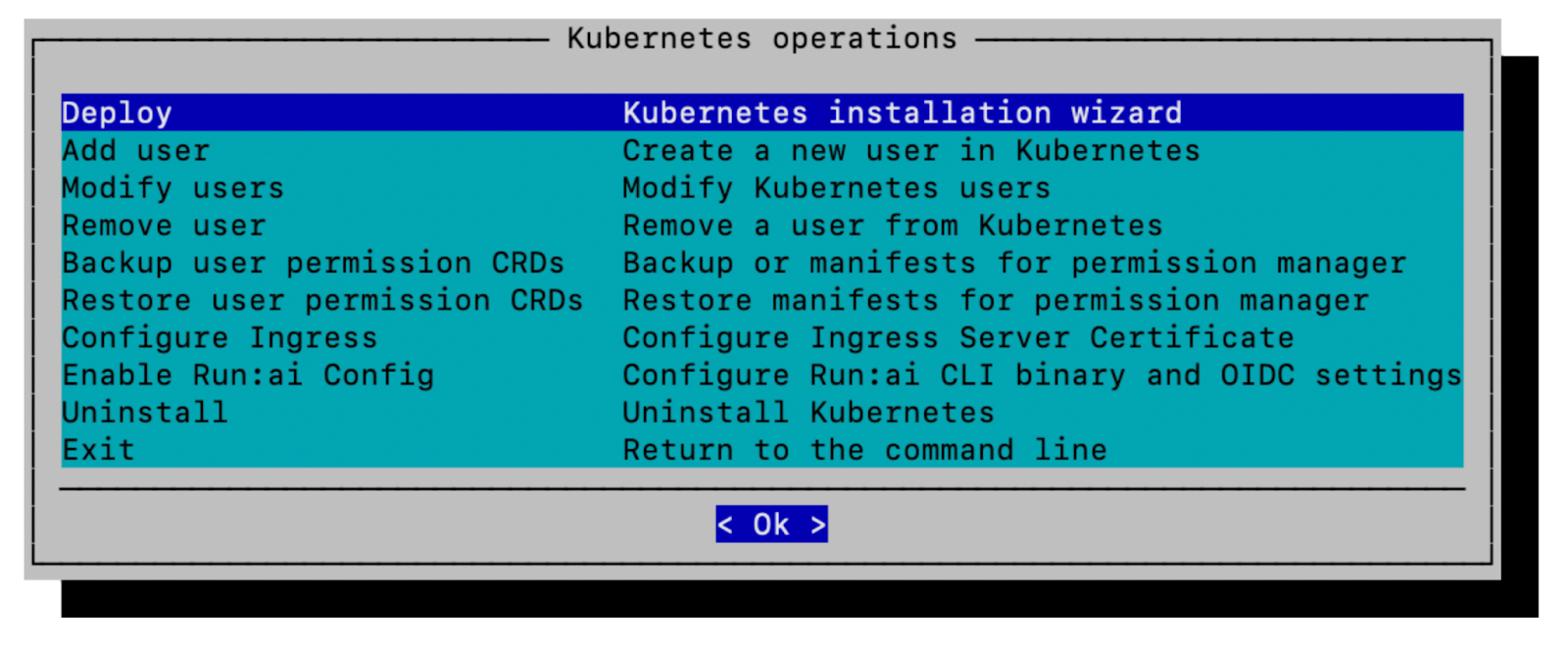
6. Select **Deploy Kubernetes installation wizard** and click **Ok** to proceed. If `cm-kubernetes-setup` is being run from GB200 or GB300, refer to the second screenshot:

<figure><img src="/files/msQzLnAsOqFhNgZonkeL" alt="" width="563"><figcaption></figcaption></figure>

<figure><img src="/files/IXSu5wshpsp1yMEYUpTg" alt="" width="563"><figcaption></figcaption></figure>

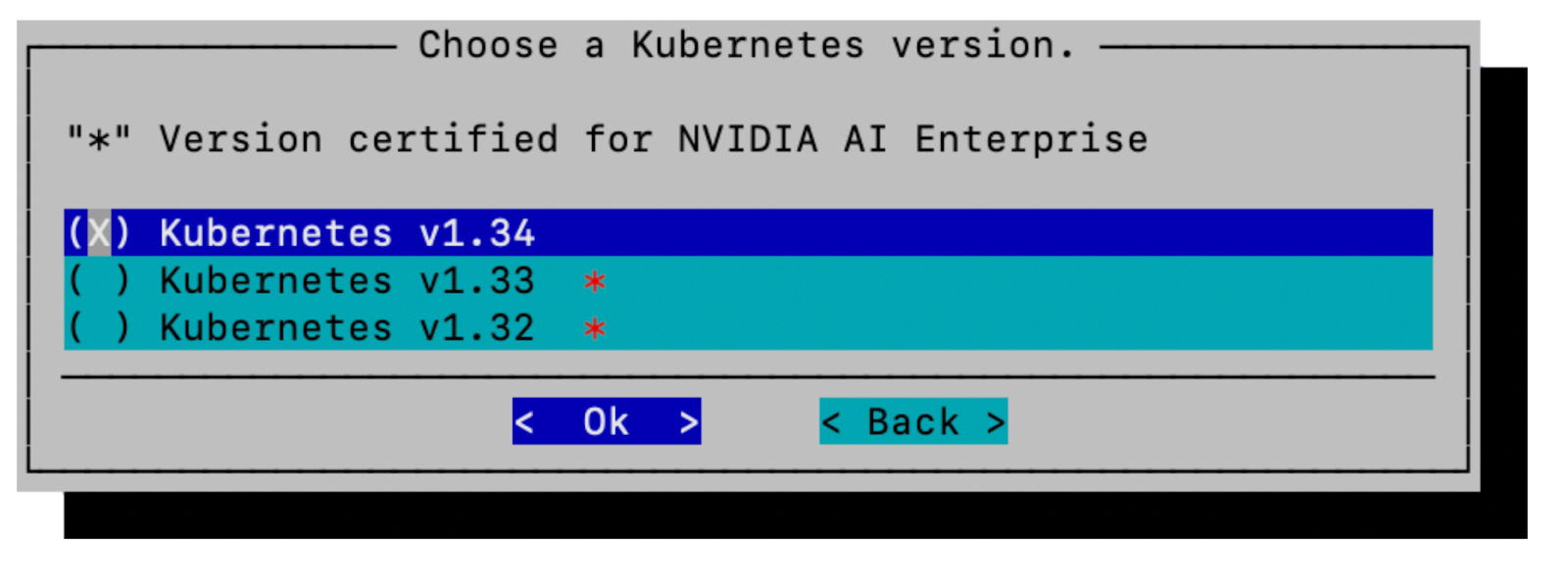
7. Select the relevant **Kubernetes** version. This guide, employing Base Command Manager 11.32.1, is based on and requires Kubernetes 1.34. Click **Ok** to proceed:

<figure><img src="/files/7IAhqxx6mnfci2JNxerd" alt="" width="563"><figcaption></figcaption></figure>

8. The next step inquires if there's a Docker Hub registry mirror available. It's recommended that a local registry mirror be employed when available. For the purpose of this guide, leave the default value (blank) and click **Ok** to proceed:

<figure><img src="/files/1nNeh6KcZR3Z6NPz7Jg7" alt="" width="563"><figcaption></figcaption></figure>

9. Insert values for the new Kubernetes cluster that NVIDIA Run:ai will be installed into. Click **Ok** to proceed:
   * The Kubernetes cluster name should be a short, unique name that can be used to distinguish between multiple clusters (i.e. `k8s-user`).
   * The `k8s-user.local` value for Kubernetes domain name is the default value for internal (within the Kubernetes cluster) name resolution and service discovery. It should be unique to distinguish it from the NMC cluster on DGX GB200 & GB300 SuperPODs. Common practice is to avoid using the same domain for the internal Kubernetes domain name and externally referenceable FQDN to avoid potential name resolution inconsistencies.
   * The Kubernetes external FQDN field refers to the domain name that the Kubernetes API Server will be proxied at and will be automatically populated by BCM. If a valid name record (FQDN) for the BCM head node has been established prior that should be entered here. Please see the reference architecture section of the [BCM Containerization Manual](https://support.brightcomputing.com/manuals/11/containerization-manual.pdf) for details on how this is implemented via an NGINX proxy.
   * The Service network base address, Service network netmask bits, Pod network base address, & Pod network netmask bits fields provide CIDR ranges for Kubernetes service and pod networks. These will be pre-populated (taking care to avoid overlapping ranges from networks known to BCM) from private, non-routable ranges.

<figure><img src="/files/1WwzRhWvLlF0F0HrvGOD" alt="" width="563"><figcaption></figcaption></figure>

10. The next step asks about exposing the Kubernetes API server to the external network. Select **no** and click **Ok** to proceed:

<figure><img src="/files/msz7X97mWKGsnwzNbzcd" alt="" width="563"><figcaption></figcaption></figure>

11. The preferred internal network is used for Kubernetes intercommunication between ctrl plane and worker nodes. Select **internalnet** for the preferred internal network and click **Ok** to proceed:

<figure><img src="/files/obztFVkbGir0l0USWwuG" alt="" width="563"><figcaption></figcaption></figure>

12. Select 3 or more Kubernetes master nodes. These should be the same nodes assigned to the control plane category. The screenshot below is for illustration only - the correct category should be `k8s-system-user`. See the [BCM node categories](/self-hosted/2.23/getting-started/installation/bcm-install/preparations.md#bcm-node-categories) section for more information. Click **Ok** to proceed:

<figure><img src="/files/Qv8kosBhnj55Lv9A0TcC" alt="" width="563"><figcaption></figcaption></figure>

{% hint style="info" %}
**Note**

To ensure high availability and prevent a single point of failure, it is recommended to configure at least three Kubernetes master nodes in your cluster. The nodes selected at this stage will be employed to serve the needs of the control plane and should be located on CPU nodes. In contemporary Kubernetes versions, "master nodes" are referred to as control plane nodes.
{% endhint %}

13. Select the worker node categories to operate as the Kubernetes worker nodes. The screenshot below is for illustration only - the correct category should be `dgx-gb300-k8s`, `dgx-b300-k8s` or similar and `k8s-system-user`. See the [BCM node categories](/self-hosted/2.23/getting-started/installation/bcm-install/preparations.md#bcm-node-categories) section for more information. Click **Ok** to proceed:

<figure><img src="/files/bUOnOzw0PbQzw9mcaIsP" alt="" width="563"><figcaption></figcaption></figure>

{% hint style="info" %}
**Note**

Both the control plane nodes and the DGX nodes must be selected. Selecting the control plane nodes here allows select NVIDIA Run:ai services to run on the control plane nodes. If the cluster configuration has dedicated NVIDIA Run:ai system nodes as described in the optional [Node Category](/self-hosted/2.23/getting-started/installation/bcm-install/deployment.md#bcm-node-categories) section select that category here instead.
{% endhint %}

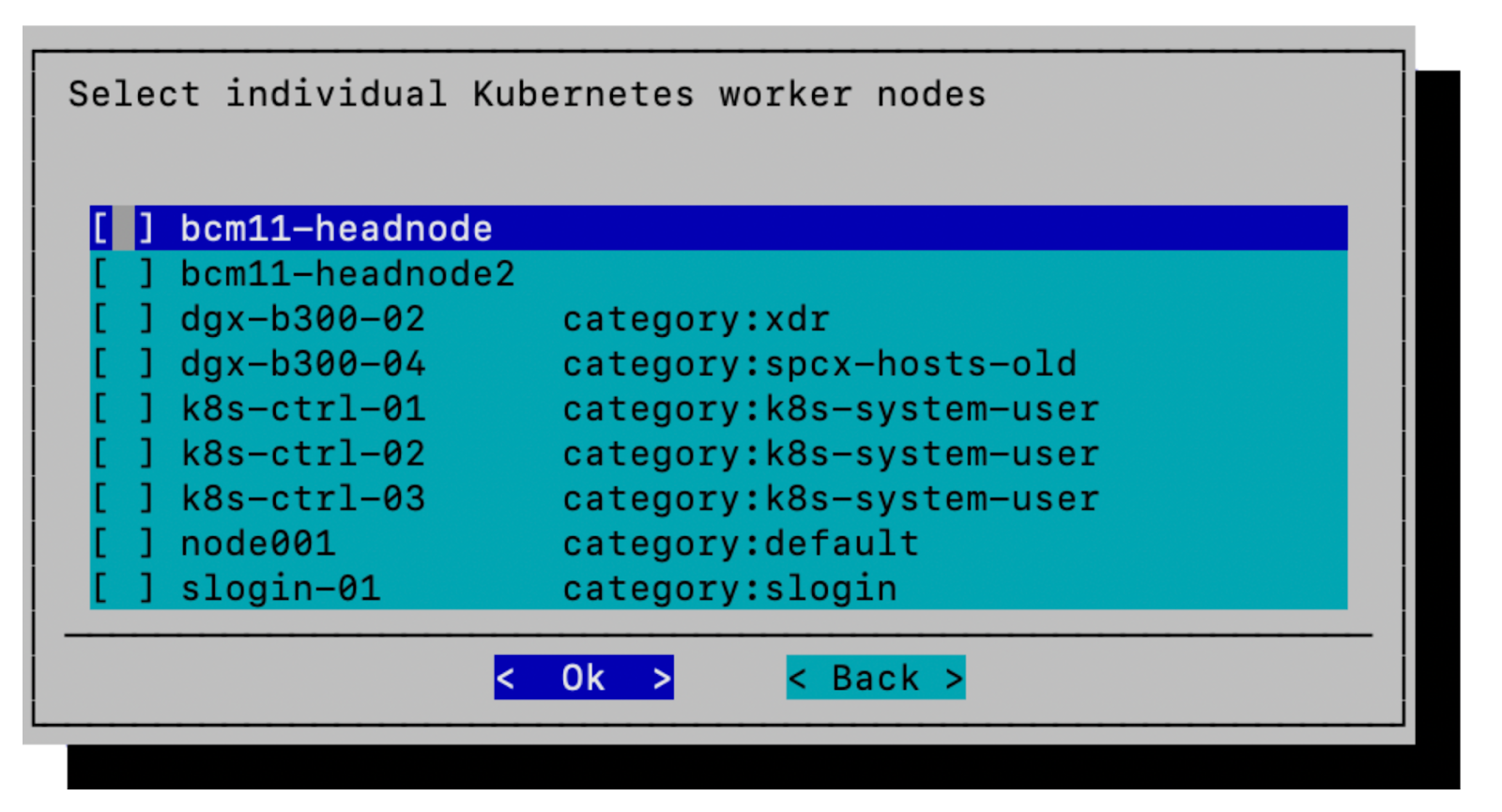
14. Skip the selection of individual Kubernetes worker nodes (the category selected in the previous step will be used instead). The screenshot below is for illustration - the correct category at this step should be `k8s-system-user`. See the [BCM node categories](/self-hosted/2.23/getting-started/installation/bcm-install/preparations.md#bcm-node-categories) section for more information. Click **Ok** to proceed:

<figure><img src="/files/y3nf3DLVyVmKwFZ5Cbf1" alt="" width="563"><figcaption></figcaption></figure>

{% hint style="info" %}
**Note**

In the combined steps 13 and 14 above, you must select from either:

* A "node category" only (as described in this guide as `k8s-system-user`)
* "Individual Kubernetes nodes" only (not generally recommended)
* Or, a combination of both
  {% endhint %}

15. Select nodes for deploying [etcd](https://kubernetes.io/docs/concepts/architecture/#etcd) on. Make sure to select the same three nodes as the Kubernetes control plane nodes (Step 12). Click **Ok** to proceed:

<figure><img src="/files/w9Iynz8sbZNYesWWCxmE" alt="" width="563"><figcaption></figcaption></figure>

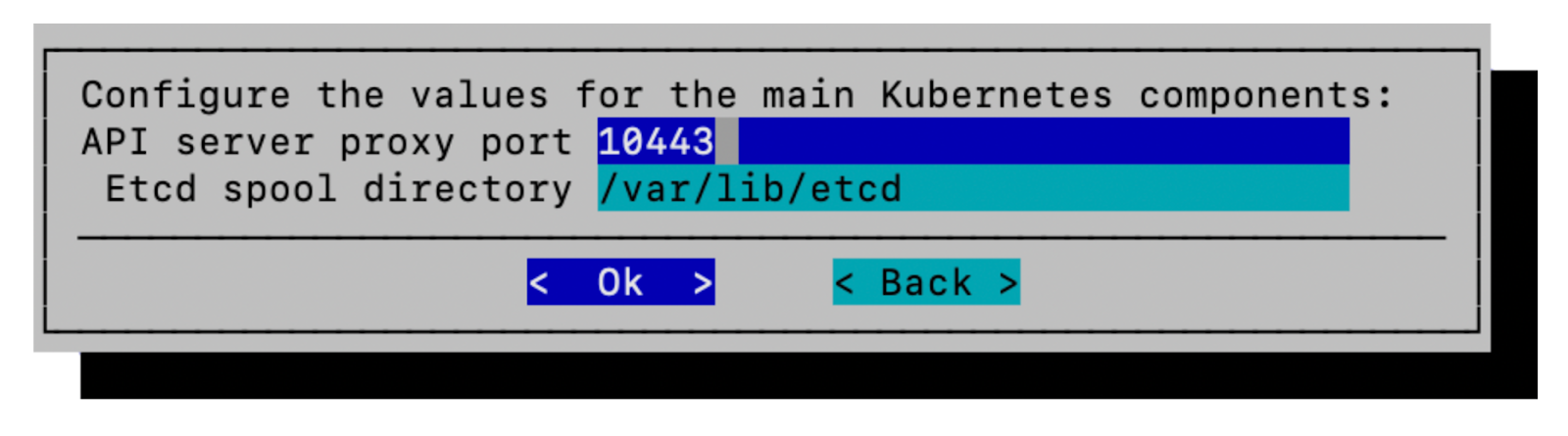
16. Leave the API server proxy port and [etcd](https://kubernetes.io/docs/concepts/architecture/#etcd) spool directory values at their prepopulated values (do not modify them). Click **Ok** to proceed:

<figure><img src="/files/FU1RVfBalLFyTHqqlVhi" alt="" width="563"><figcaption></figcaption></figure>

{% hint style="info" %}
**Note**

If there are multiple Kubernetes clusters being managed by BCM (such as in the case of DGX GB200 and GB300 SuperPODs), the default proxy port value will automatically be incremented to avoid an overlap with existing clusters and may not match the screenshot.
{% endhint %}

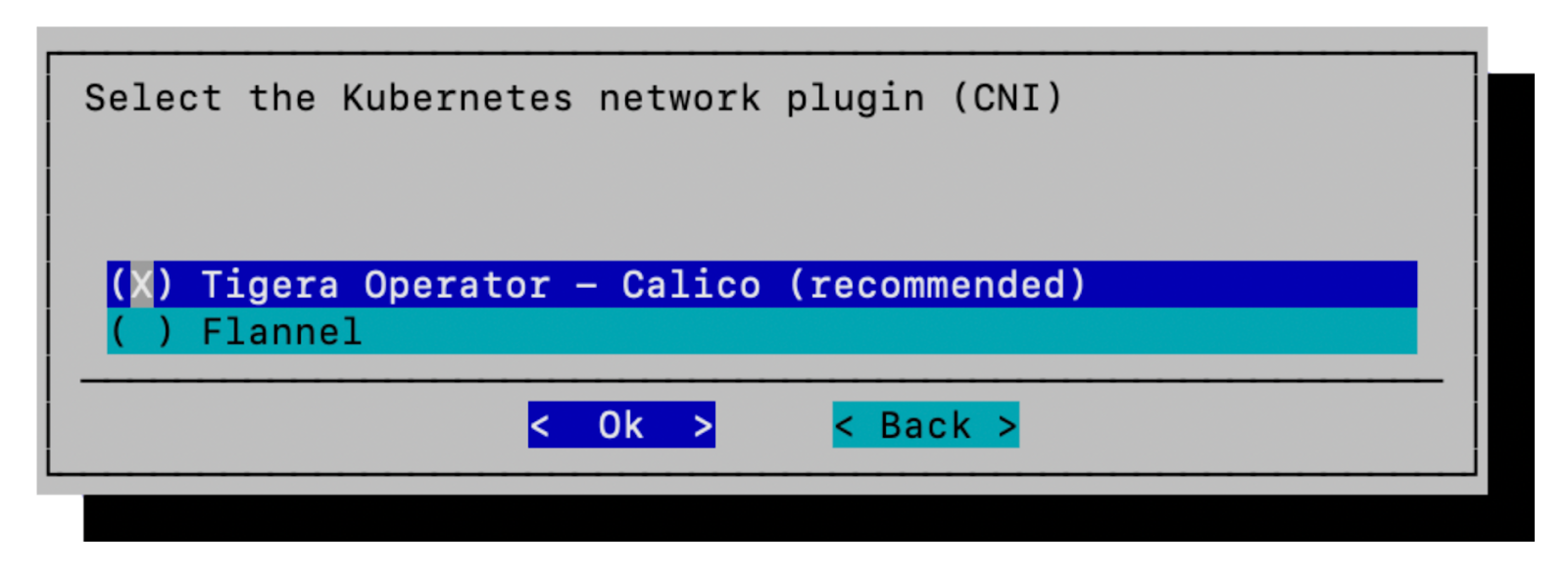
17. Select **Calico** as the Kubernetes network plugin. Click **Ok** to proceed:

<figure><img src="/files/asQbO4Te259mGb2UdB0F" alt="" width="563"><figcaption></figcaption></figure>

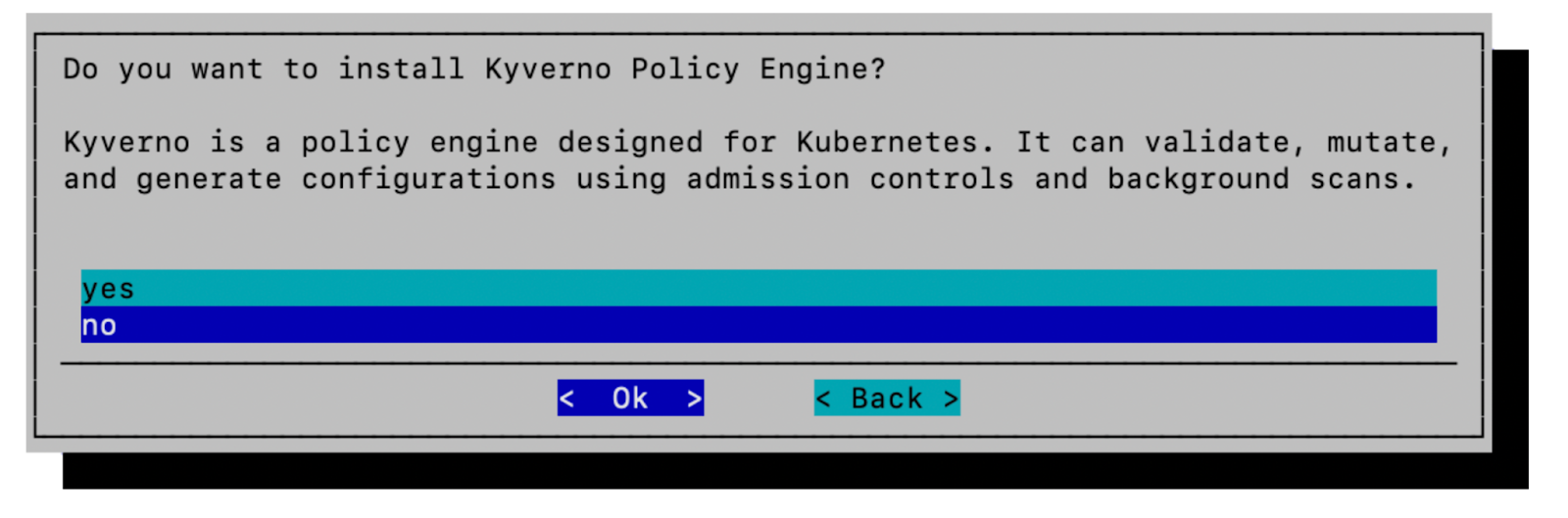
18. Select **no** to installing the **Kyverno Policy Engine** and click **Ok** to proceed:

<figure><img src="/files/6xpSIJyjvgccvK8GbrmO" alt="" width="563"><figcaption></figcaption></figure>

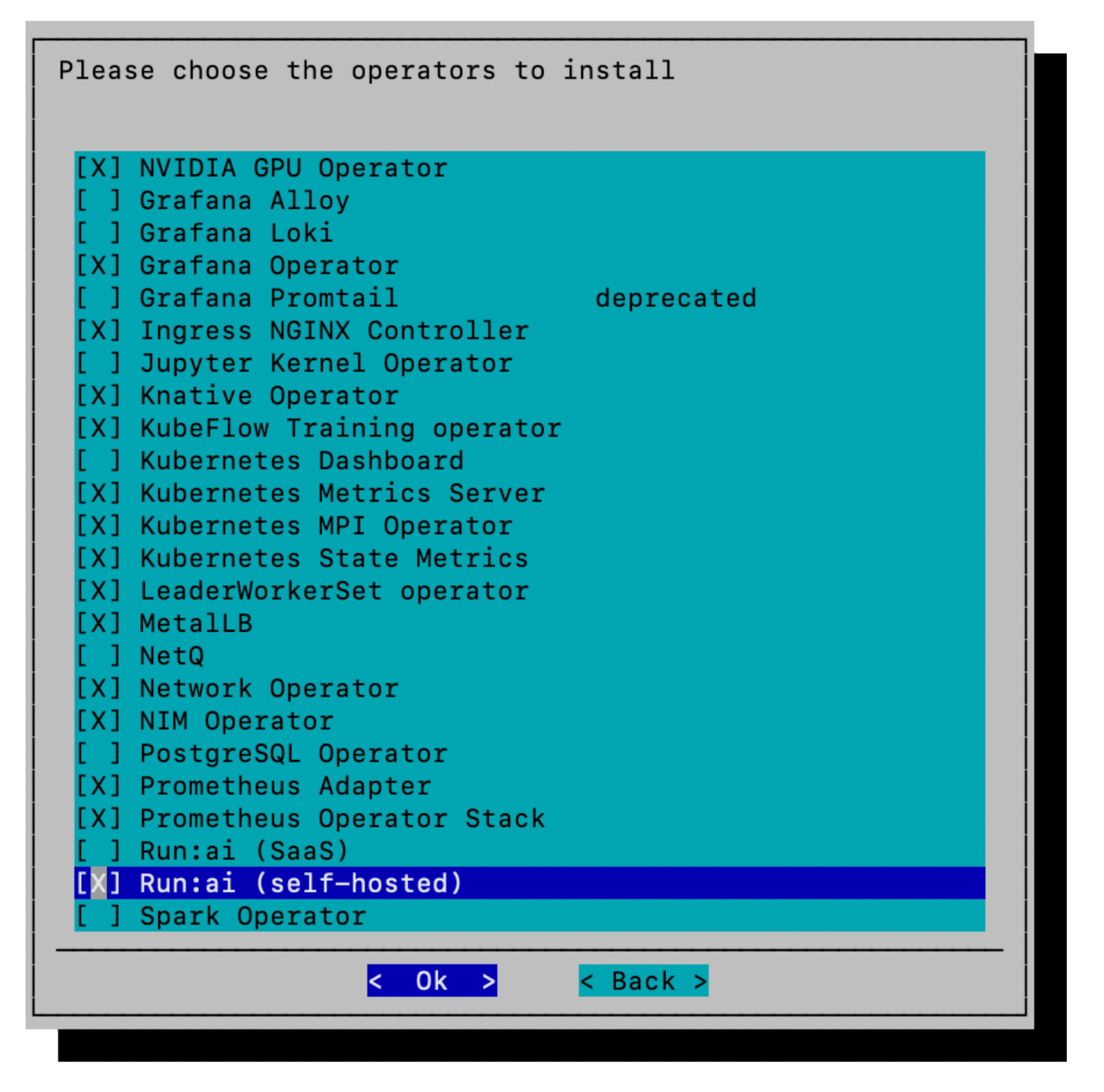
19. The components selected in this screen represent those required by NVIDIA Run:ai for a self-hosted installation. Select the operator and NVIDIA Run:ai self-hosted options as depicted below. Click **Ok** to proceed:
    * NVIDIA GPU Operator
    * Grafana Operator
    * Ingress NGINX Controller
    * Knative Operator
    * Kubeflow Training Operator
    * Kubernetes Metrics Server
    * Kubernetes MPI Operator
    * Kubernetes State Metrics
    * LeaderWorkerSet Operator
    * MetalLB
    * Network Operator
    * NIM Operator (optional)
    * Prometheus Adapter
    * Prometheus Operator Stack
    * Run:ai (self-hosted)

<figure><img src="/files/KCiQWe5MKMtbYwlDUK47" alt="" width="563"><figcaption></figcaption></figure>

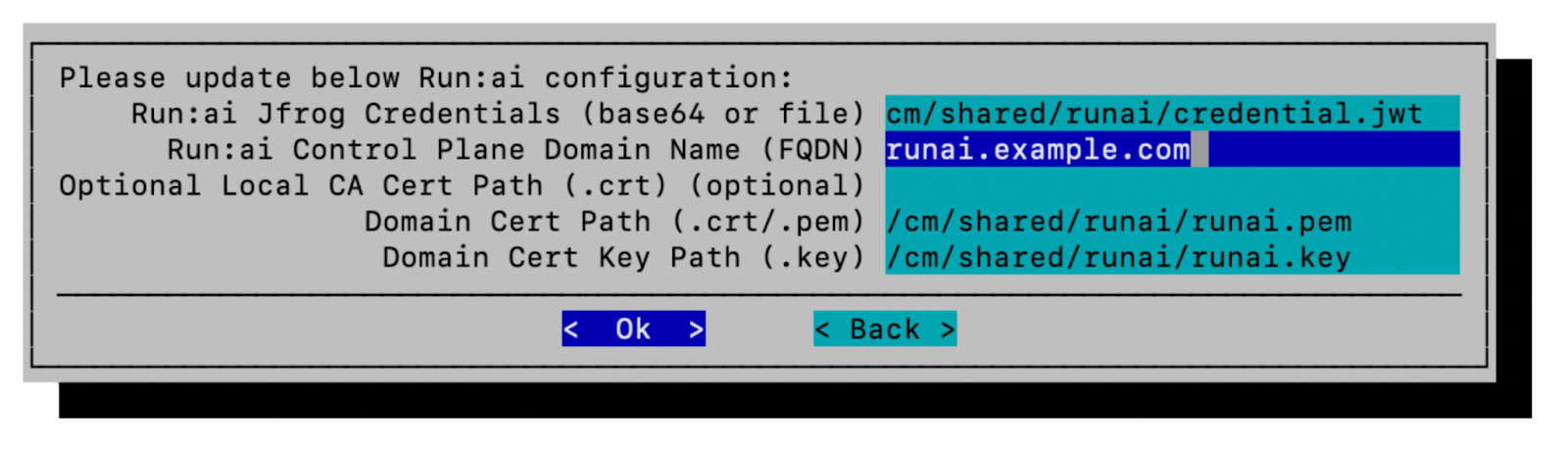
20. Provide the NVIDIA Run:ai configuration with the below and click **Ok** to proceed:
    * **Run:ai Registry Credentials** - Enter the path to a file containing the base64-encoded NVIDIA token. Alternatively the Base64 encoded value can be pasted in directly.
    * **Run:ai Control Plane Domain Name (FQDN)** - Enter the NVIDIA Run:ai control plane's fully qualified domain name (e.g., `runai.example.com`). This value should be different from the FQDN entered on the first "Insert basic values" Kubernetes setup in Step 9. It should be what was used when creating certificates (and should not be the same as the BCM head node hostname).
    * **Local CA Cert Path (.crt or .pem)** - Path to the root CA certificate file if you are using a local CA–issued certificate (common in testing or internal environments). It's optional if using a certificate from a public CA.
    * **Domain Cert Path (.crt/.pem)** - Path to the full-chain certificate for your domain (the domain's leaf certificate followed by any intermediate certificates).
    * **Domain Cert Key Path (.key)** - Path to the private key that matches the domain certificate.

<figure><img src="/files/7ZnwiJHgD7TSp2htuTMG" alt="" width="563"><figcaption></figcaption></figure>

{% hint style="info" %}
**Note**

It's recommended to save all certificates, configuration files, and deployment artifacts into a persistent and accessible location in case of redeployment. The `/cm/shared/runai/` directory referred to in this guide resides on a shared mount point and would be a suitable location. See the [TLS certificates](/self-hosted/2.23/getting-started/installation/bcm-install/preparations.md#tls-certificates) section for additional clarification.
{% endhint %}

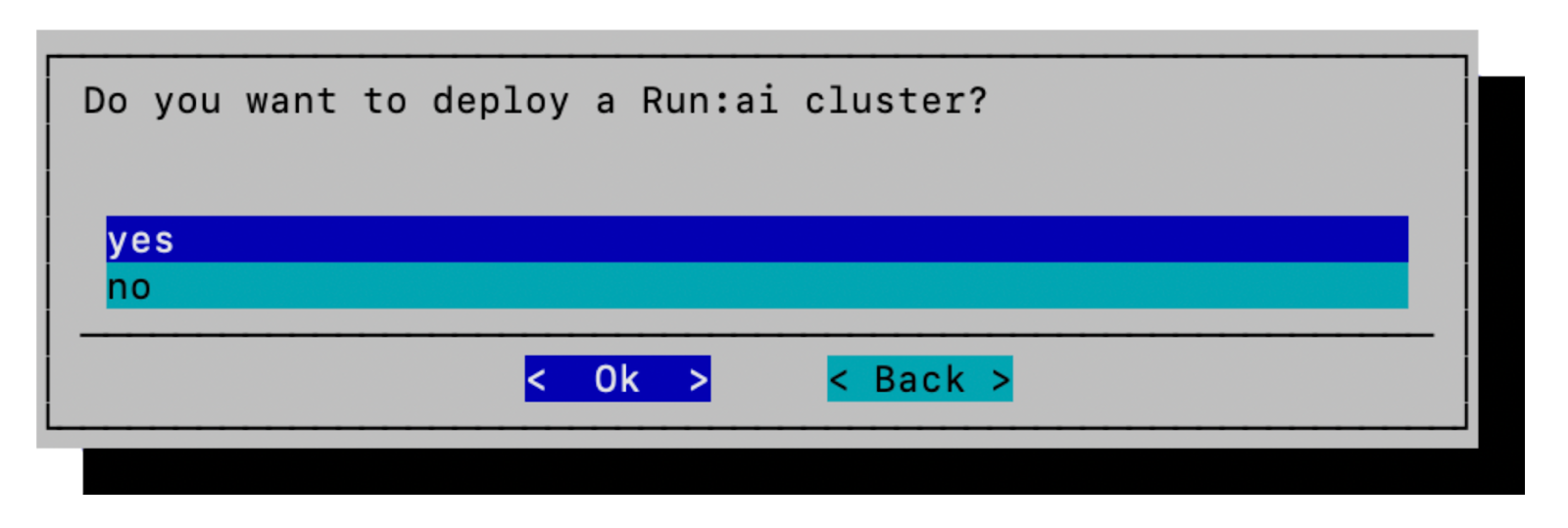
21. Select **yes** to install NVIDIA Run:ai components. Click **Ok** to proceed:

<figure><img src="/files/FhaZswoL1zGN2oeCQlvw" alt="" width="563"><figcaption></figcaption></figure>

{% hint style="info" %}
**Note**

In this version of the BCM installation assistant, a warning dialog indicating an ssh issue will follow - disregard and click **Ok** to proceed. Other indications at this stage may indicate a problem with the certs supplied.
{% endhint %}

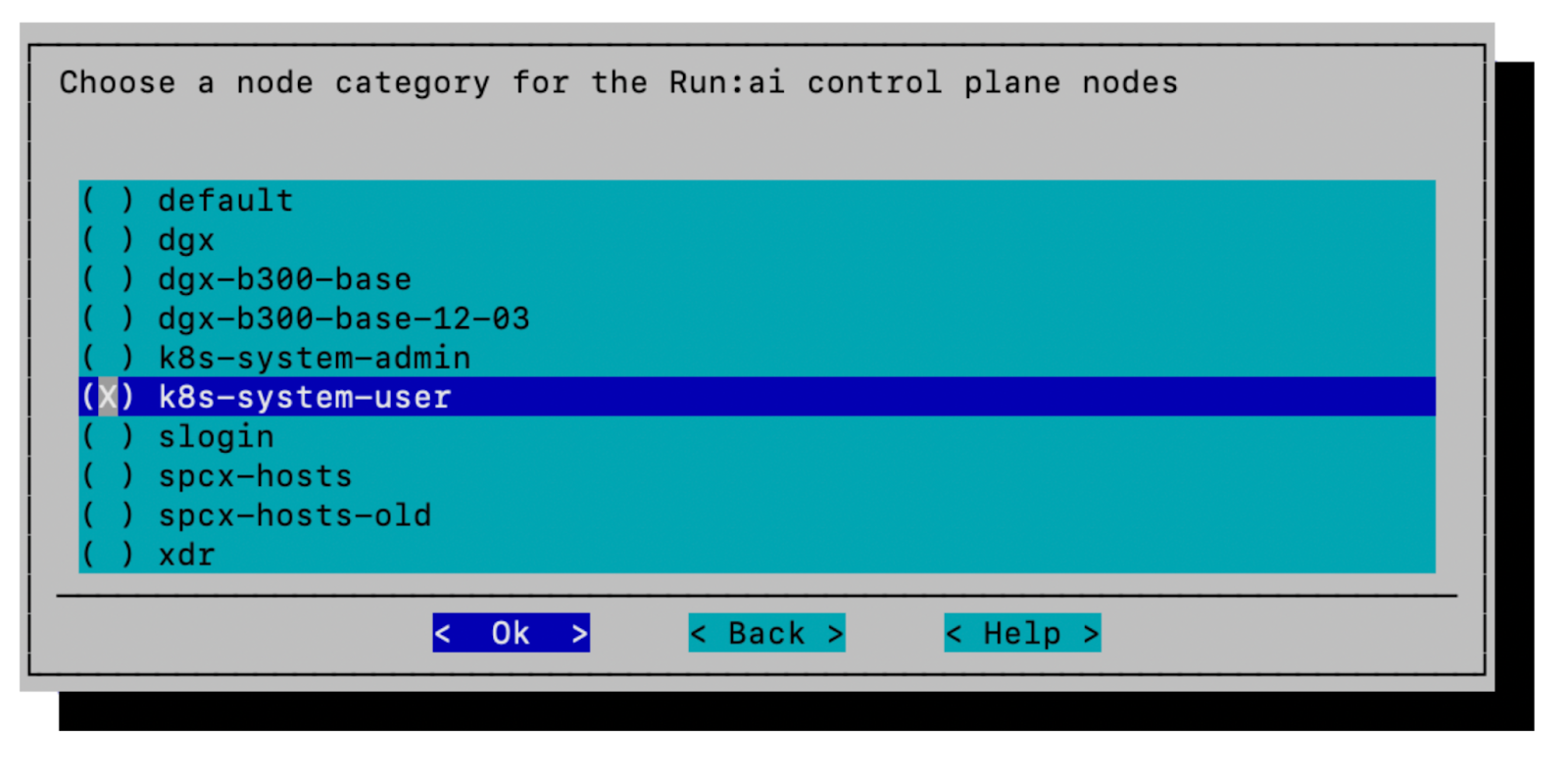
22. Select the `k8s-system-user` node category for the NVIDIA Run:ai control plane nodes and click **Ok** to proceed:

<figure><img src="/files/JV454NaJGfvyjhhNC6uL" alt="" width="563"><figcaption></figcaption></figure>

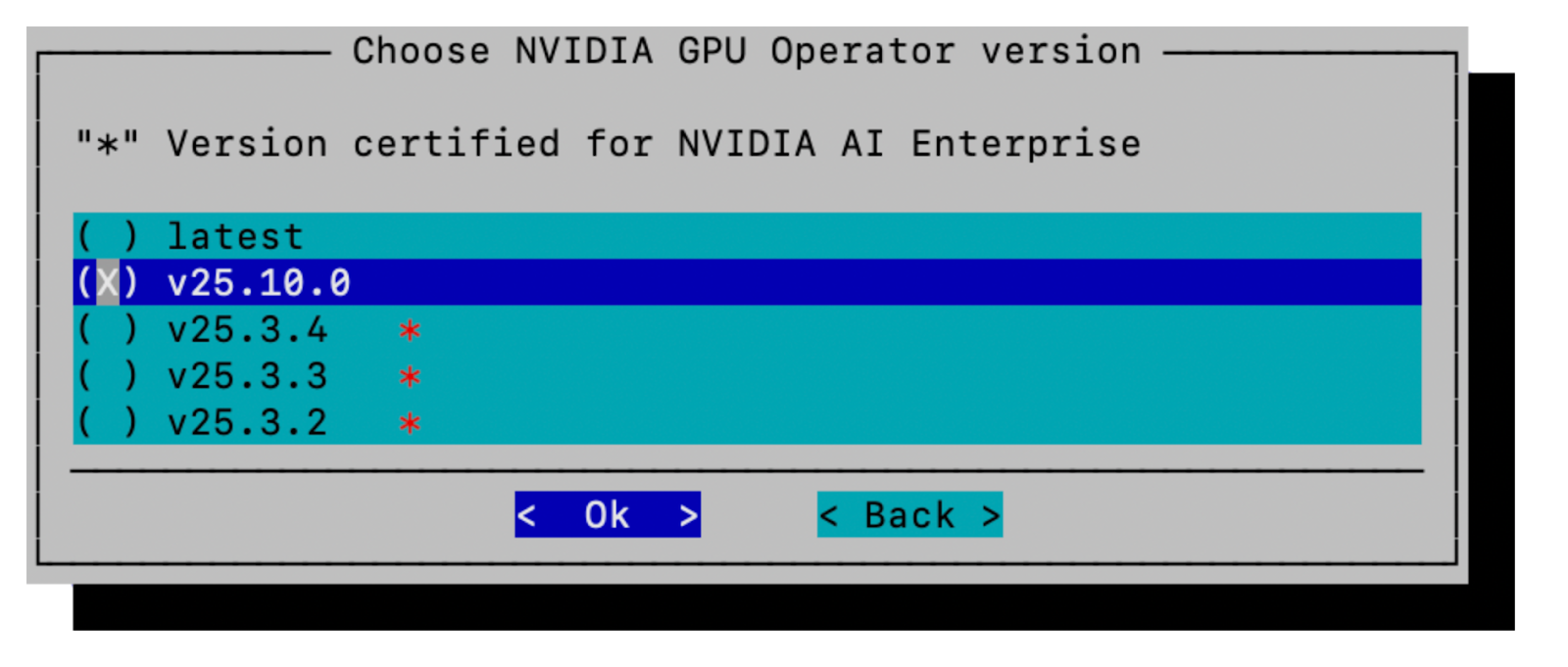
23. Select the required **NVIDIA GPU Operator** version (v25.10.0). Click **Ok** to proceed:

<figure><img src="/files/FUVEypAGWXRulTvHoICZ" alt="" width="563"><figcaption></figcaption></figure>

24. Select the required **Network Operator** (v25.7.0) version. Click **Ok** to proceed:

<figure><img src="/files/LwFx7v6vNZwtujbDRzgB" alt="" width="563"><figcaption></figcaption></figure>

25. Select the required **NVIDIA Run:ai version** (v2.23.x). Click **Ok** to proceed:

<figure><img src="/files/fyyqSlw98qBBH83DL780" alt="" width="563"><figcaption></figcaption></figure>

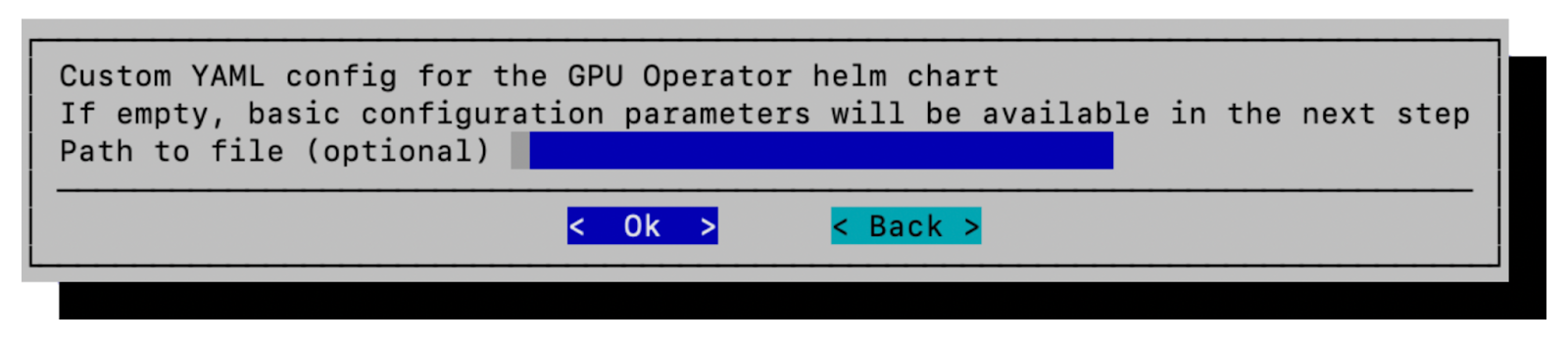
26. When prompted to supply a **Custom YAML config** for the GPU Operator leave the default (blank) and click **Ok** to proceed:

<figure><img src="/files/3uNvjgnK2hDCRZIp1OQc" alt="" width="563"><figcaption></figcaption></figure>

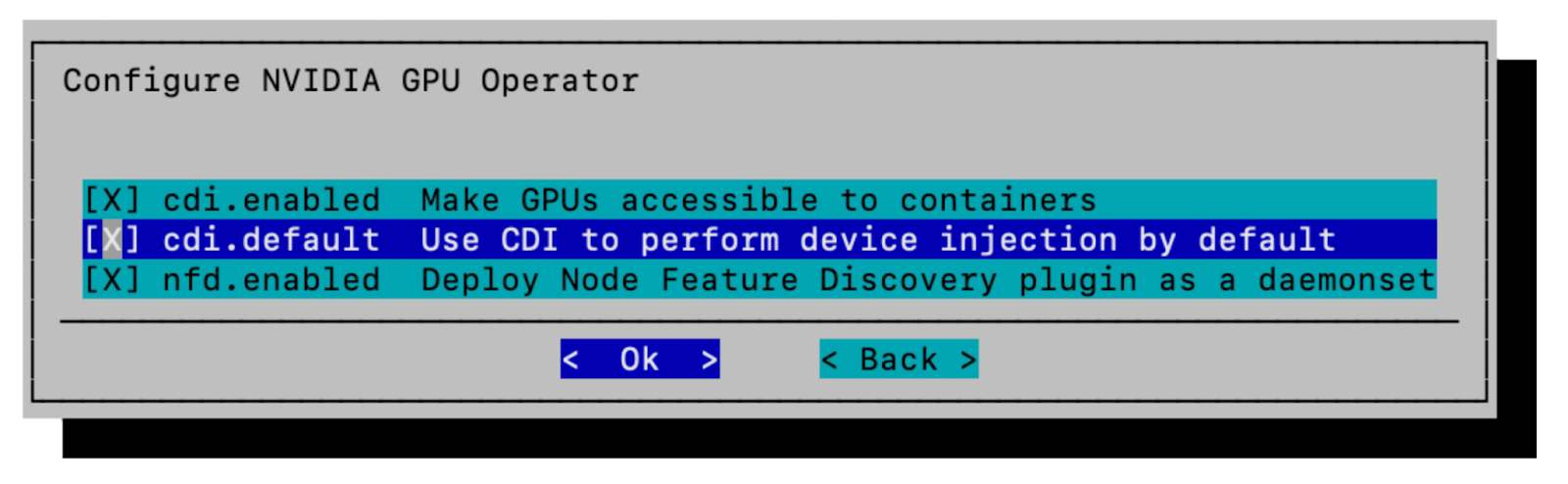
27. Configure the NVIDIA GPU Operator by selecting the following configuration parameters. Click **Ok** to proceed:

<figure><img src="/files/D7l9TLIZvTXKWj6KpJgg" alt="" width="563"><figcaption></figcaption></figure>

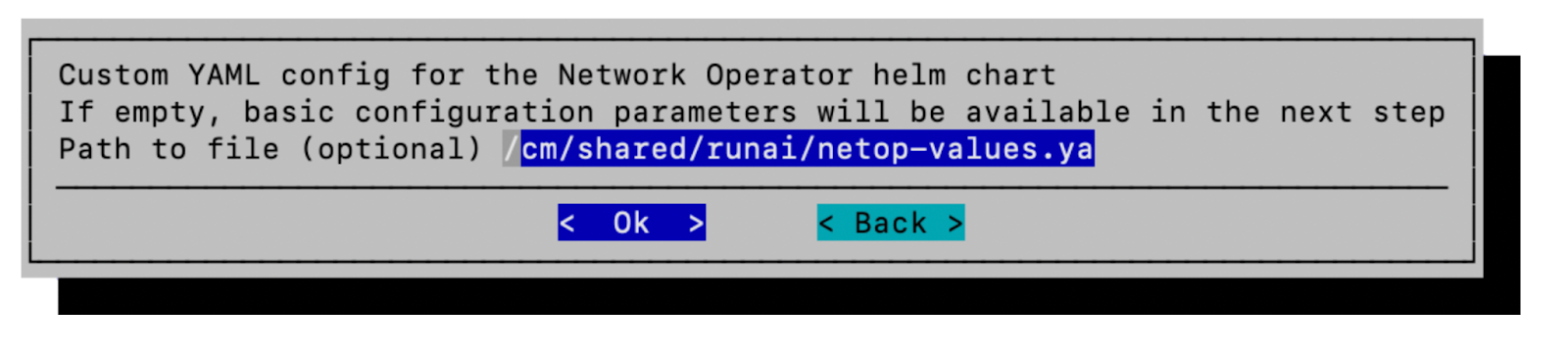
28. Supply the path to the `netop-values.yaml` file that was created in Step 3. Click **Ok** to proceed:

<figure><img src="/files/kJcH9Gqo7Sf52avcU7gp" alt="" width="563"><figcaption></figcaption></figure>

29. Select **Do not use pre-defined** at the GPU Operator configuration step. Click **Ok** to proceed:

<figure><img src="/files/q1JDOZFh5r16US0FC2cU" alt="" width="563"><figcaption></figcaption></figure>

30. Click **Ok** for the MetalLB IP address pools page and it will automatically set up the requirements for NVIDIA Run:ai:

<figure><img src="/files/PkY0vTjFDx6jBg4VqNVm" alt="" width="563"><figcaption></figcaption></figure>

31. Specify the ingress IP addresses prepared as documented in the [Pre-installation checklist](/self-hosted/2.23/getting-started/installation/bcm-install/preparations.md#pre-installation-checklist) section. The mention of MetalLB here is an indication that these will be set up as part of a load balanced pool and assigned to each respective ingress. Click **Ok** to proceed:

<figure><img src="/files/PwgUIn1wr2VkugKiCnP7" alt="" width="563"><figcaption></figcaption></figure>

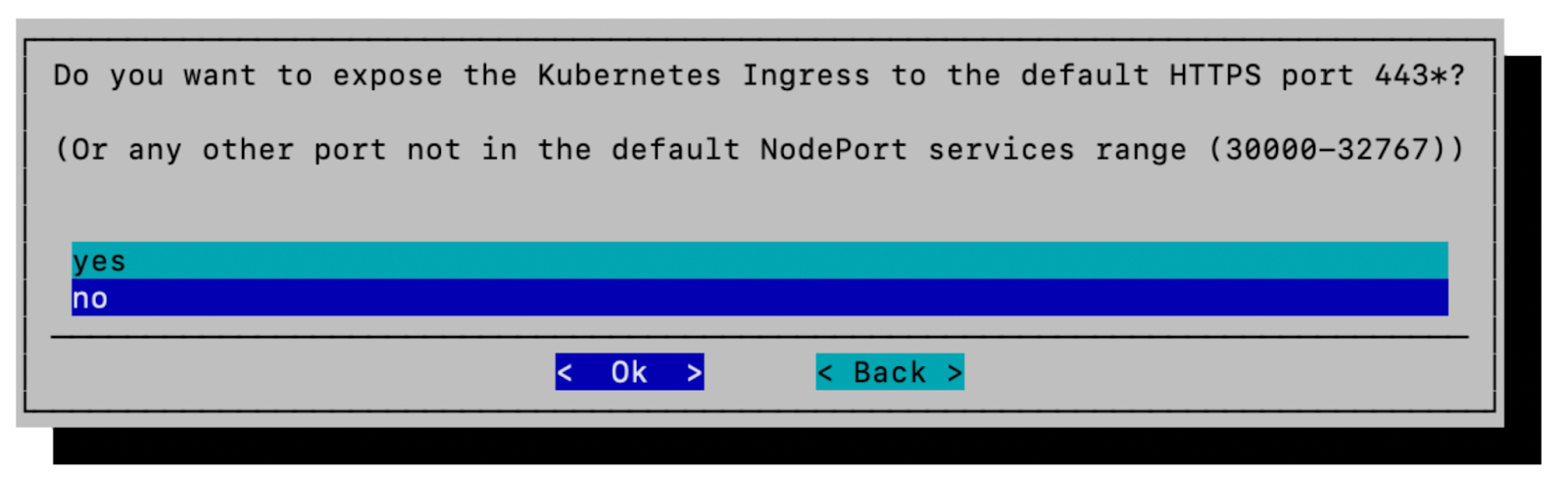
32. Select **no** to expose the **Kubernetes Ingress** to the default HTTPS port. Click **Ok** to proceed:

<figure><img src="/files/03D4bN4DvE1aFlB4nCSR" alt="" width="563"><figcaption></figcaption></figure>

33. Leave the node ports for the Ingress NGINX Controller at the pre-populated values (do not modify them) and click **Ok** to proceed:

<figure><img src="/files/VzSOzLlE8P6AnD525ABj" alt="" width="563"><figcaption></figcaption></figure>

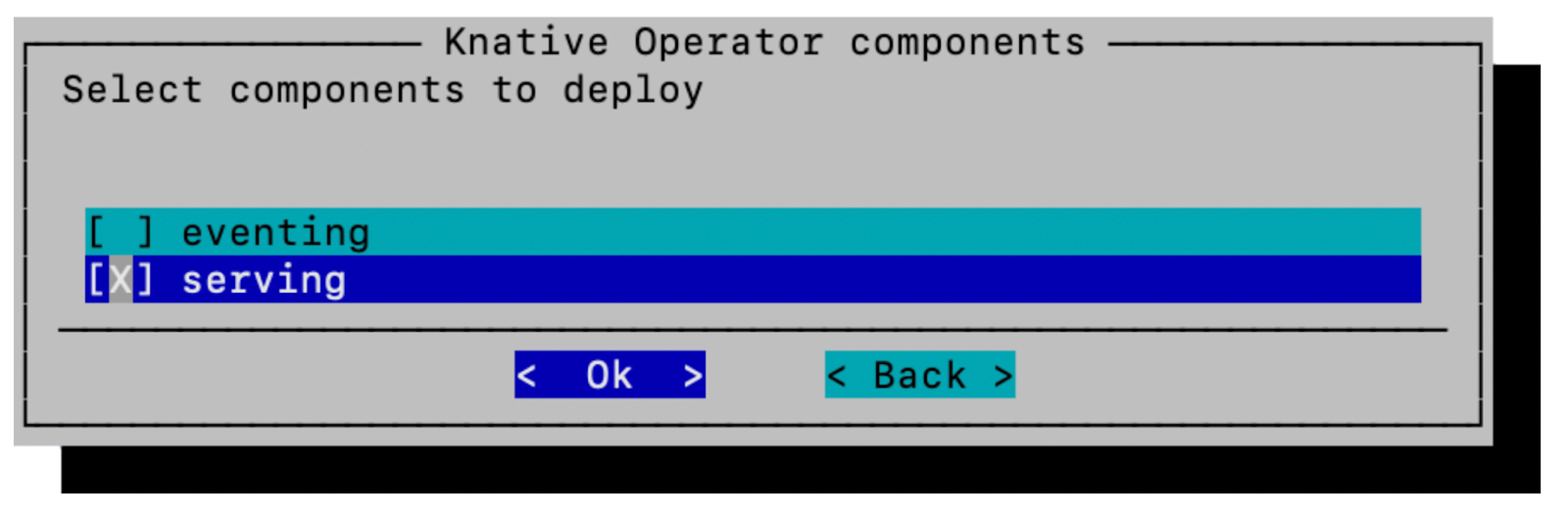
34. Select the serving option in the Knative Operator components dialog. Click **Ok** to proceed:

<figure><img src="/files/wF1n6f6ctsWvRxAOvjwd" alt="" width="563"><figcaption></figcaption></figure>

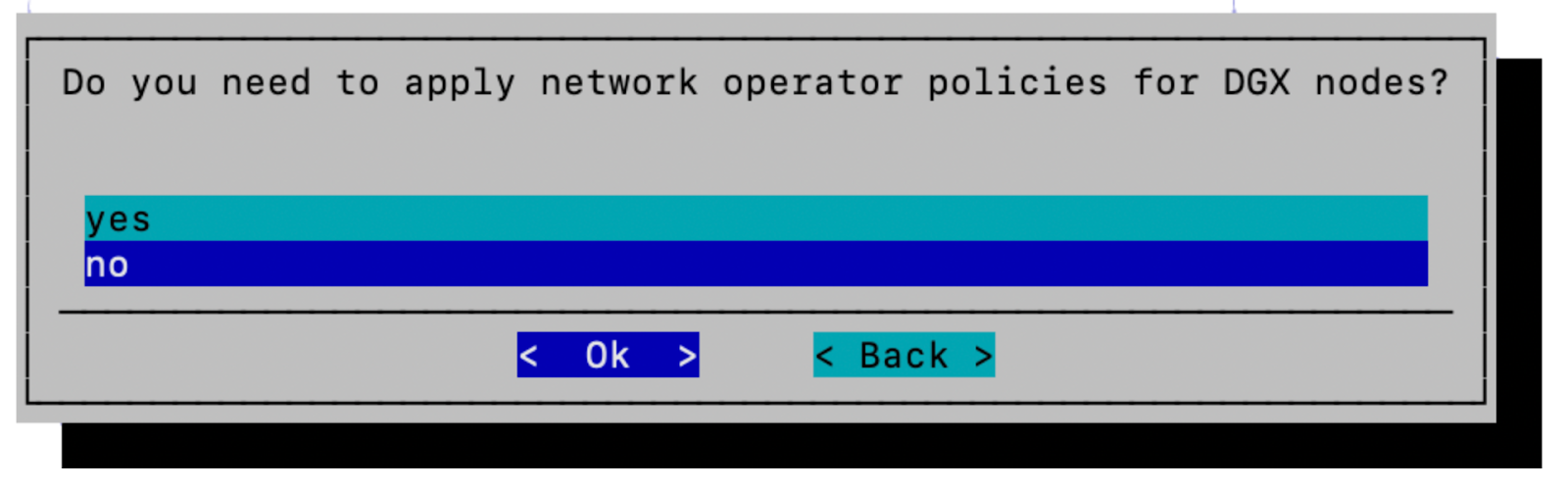
35. If deploying onto an A100 or H100 only cluster, select **yes**. If deploying on any other cluster configuration select **no**. Click **Ok** to proceed:

<figure><img src="/files/BJ3REg7lqD3SKpkA16Ny" alt="" width="563"><figcaption></figcaption></figure>

{% hint style="info" %}
**Note**

If applicable, Network Operator SRIOV network policies for DGX B200, DGX GB200 or later systems will be applied in a post-deployment step described below.
{% endhint %}

36. If **yes** was selected for the previous step, select the appropriate option for the cluster and click **Ok** to proceed. In certain cases, this dialog may appear even if **no** is selected at the preceding step:

<figure><img src="/files/8oly4MMmxcH2BWXA9Sf1" alt="" width="563"><figcaption></figcaption></figure>

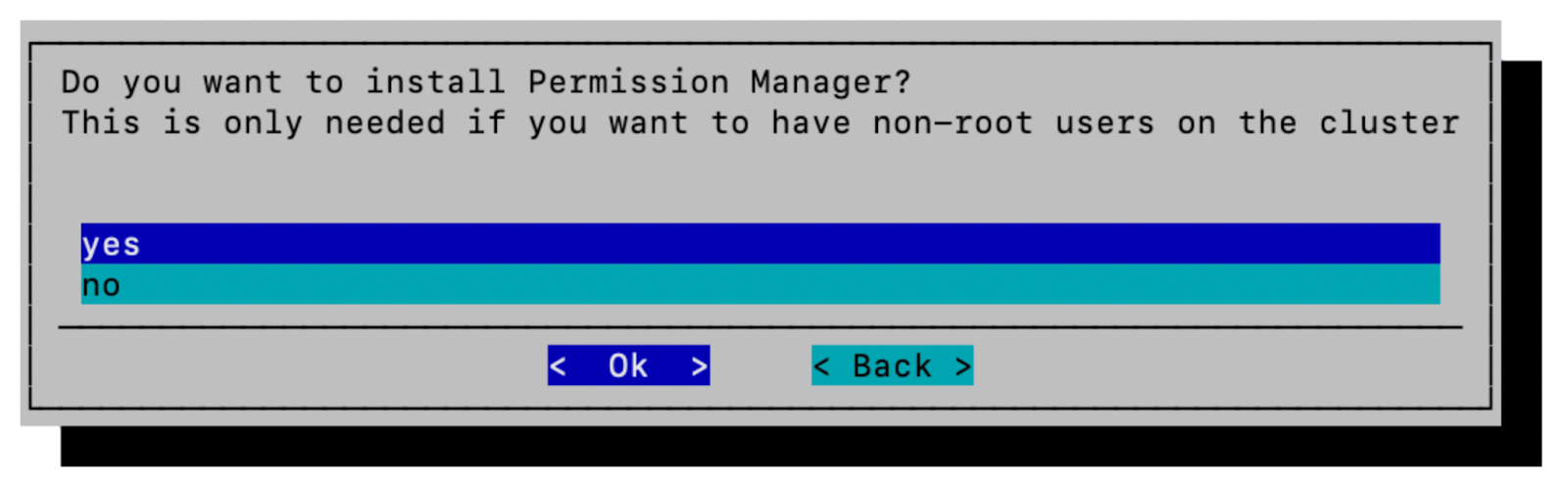
37. Select **yes** to install the **Permission Manager**. Click **Ok** to proceed:

<figure><img src="/files/i6Y7gd8Z9zhMuhO2WVhE" alt="" width="563"><figcaption></figcaption></figure>

{% hint style="info" %}
**Note**

The BCM Permission Manager coordinates security policy, system accounts, RBAC, and configures Kubernetes to employ BCM LDAP for user accounts. BCM User Accounts, however, are not automatically represented within NVIDIA Run:ai. For assistance with configuring NVIDIA Run:ai, see [Set Up SSO with OpenID Connect](/self-hosted/2.23/infrastructure-setup/authentication/sso/openidconnect.md). For more information on the BCM Permission Manager, see [Containerization Manual documentation](https://docs.nvidia.com/base-command-manager/index.html#product-manuals).
{% endhint %}

38. Select **Local path** as the Kubernetes StorageClass. Ensure that both **enabled** and **default** are specified. Click **Ok** to proceed:

<figure><img src="/files/NCHdas6s42YGA3yzBlhT" alt="" width="563"><figcaption></figcaption></figure>

{% hint style="info" %}
**Note**

The indication "local path" in the installation assistant may imply that local storage is employed, but those paths are pointing to NFS mountpoints. These were mounted as part of standard BCM node provisioning (e.g. `/cm/shared` and `/home`).
{% endhint %}

39. Configure the CSI Provider (`local-path-provisioner`) to employ shared storage (`/cm/shared/apps/kubernetes/k8s-user/var/volumes` as a default). Click **Ok** to proceed:

<figure><img src="/files/AXFxb6ORNFtlnzQccAen" alt="" width="563"><figcaption></figcaption></figure>

40. Select **yes** to enable local persistent storage for Grafana. Click **Ok** to proceed:

<figure><img src="/files/V8owrMdP12GaQJbAVJes" alt="" width="563"><figcaption></figcaption></figure>

41. Select **Save config & Exit**, set an accessible location for the config file (for example: `/cm/shared/runai/cm-kubernetes-setup.conf`) with the rest of the config files, and then click **Ok**.

The wizard saves the configuration to the path specified above. Once saved, proceed to [Configure the Airgap Settings](#configure-the-airgap-settings) before starting the deployment.

## Configure the Airgap Settings

Open `/root/cm-kubernetes-setup.conf` and locate the `airgap` block under `modules.kubernetes`:

```yaml
modules:
  kubernetes:
    airgap:
      helm:
        ca: ''
        repo: ''
      registry: ''
      registry_username: ''
      registry_password: ''
      runai: ''
```

Replace it with the following, adjusting values for your environment:

```yaml
modules:
  kubernetes:
    airgap:
      helm:
        ca: '/cm/local/apps/containerd/var/etc/certs.d/master.cm.cluster:5000/ca.crt'
        repo: 'oci://master.cm.cluster:5000/helm-charts'
      registry: 'master.cm.cluster:5000'
      registry_username: ''
      registry_password: ''
      runai_air-gapped_tarball: '/root/air-gapped/runai-airgapped-package-2.23.x.tar.gz'
```

| Field                                     | Description                                                         |
| ----------------------------------------- | ------------------------------------------------------------------- |
| `helm.ca`                                 | Path to the CA certificate for the local Helm/OCI registry          |
| `helm.repo`                               | OCI URL of the local Helm chart registry                            |
| `registry`                                | Hostname and port of the local container image registry             |
| `registry_username` / `registry_password` | Credentials for the local registry (leave blank if unauthenticated) |
| `runai_air-gapped_tarball`                | Absolute path to the Run:ai air-gapped `.tar.gz` file               |

## Deploy Kubernetes

With the config updated, start the deployment. Use `screen` or `tmux` to prevent interruptions:

```bash
screen -S install_runai
cm-kubernetes-setup -v -c /root/cm-kubernetes-setup.conf
```

## Connect to NVIDIA Run:ai User Interface

Upon completion of `cm-kubernetes-setup`, access NVIDIA Run:ai at the ingress IP or hostname specified earlier (e.g. [runai.example.com](http://runai.example.com)). The default NVIDIA Run:ai credentials required for login are:

* User: `test@run.ai`
* Password: `Abcd!234`

You will be prompted to change the password.

{% hint style="info" %}
**Note**

It is critical for security reasons that upon first login a new admin user is created with a secret password and the initial default credentials are changed or the test user deleted.
{% endhint %}

On first access, administrators are presented with an **optional onboarding wizard** that helps with initial setup tasks. The onboarding wizard can guide you through:

* Configuring single sign-on (SSO)
* Inviting the first research team

You can choose to **complete or skip** the onboarding wizard and perform these actions later.

After the BCM installation assistant completes, additional steps are required.

If multiple Kubernetes clusters are configured in this instance of BCM, load the correct Kubernetes module before running all post-wizard commands:

```bash
module unload kubernetes
module load kubernetes/k8s-user
```

## NVIDIA Dynamic Resource Allocation (DRA) Driver

The [NVIDIA DRA Driver for GPUs](https://docs.nvidia.com/datacenter/cloud-native/gpu-operator/latest/dra-cds.html) extends how NVIDIA GPUs are consumed within Kubernetes. This is required to enable secure Internode Memory Exchange (IMEX) on Multi-Node NVLink (MNNVL) systems (e.g. GB200, GB300) for Kubernetes workloads and should be included with all NVIDIA GPU systems.

1. Install using Helm:

   ```bash
   helm repo add nvidia https://helm.ngc.nvidia.com/nvidia \
   && helm repo update
   helm install nvidia-dra-driver-gpu nvidia/nvidia-dra-driver-gpu \
   --version="25.8.0" \
   --create-namespace \
   --namespace nvidia-dra-driver-gpu \
   --set nvidiaDriverRoot=/ \
   --set resources.gpus.enabled=false
   ```

{% hint style="warning" %}
**NGC image pull secret (bandwidth tests only)**

The bandwidth tests — `dra-computedomain-test.yaml` and `ib-bandwidth-test.yaml` — pull the entitled `nvcr.io/nvidia/nv-mission-control/nvbandwidth` image and reference an image pull secret named `ngc-nvcr`. Before applying either, create that secret in the `default` namespace (replace `<NGC_API_KEY>` with a valid NGC key):

```bash
kubectl create secret docker-registry ngc-nvcr \
  --docker-server=nvcr.io \
  --docker-username='$oauthtoken' \
  --docker-password='<NGC_API_KEY>' \
  -n default
```

The NCCL tests (`ib-nccl-test.yaml`, `roce-nccl-test.yaml`) use the public `nvcr.io/nvidia/pytorch` image and do not need this secret.
{% endhint %}

2. **Multi-Node NVLink (MNNVL) platforms (e.g. GB200, GB300) only** - Create a `dra-computedomain-test.yaml` file in `/cm/shared/runai` from the [Validation tests](/self-hosted/2.23/getting-started/installation/bcm-install/validation-tests.md). The test co-locates its worker pods within a single NVL clique automatically via `podAffinity` with `topologyKey: nvidia.com/gpu.clique`, so there is no clique ID to edit for a single-rack NVL72 cluster. For multi-rack systems, adjust the `podAffinity` `topologyKey` to match your topology:

   ```bash
   # Optional: inspect the NVL clique labels on the GPU nodes
   kubectl describe nodes | grep nvidia.com/gpu.clique=
   >                    nvidia.com/gpu.clique=f84d133c-bbc9-55fd-b1ff-ffffc7ef6783.23322

   # For MNNVL platforms (e.g. GB200 & GB300)
   kubectl apply -f /cm/shared/runai/dra-computedomain-test.yaml
   ```
3. **Multi-Node NVLink (MNNVL) platforms (e.g. GB200, GB300) only** - Validate the test successfully completed and inspect the logs of the launcher:

   <pre class="language-bash"><code class="lang-bash"><strong># For MNNVL platforms (e.g. GB200 &#x26; GB300)
   </strong>kubectl get pods
   > NAME                              READY   STATUS      RESTARTS   AGE
   > nvbandwidth-test-launcher-snb82   0/1     Completed   0          72s

   kubectl logs nvbandwidth-test-launcher-snb82
   </code></pre>
4. **Multi-Node NVLink (MNNVL) platforms (e.g. GB200, GB300) only** - Cleanup test:

   ```bash
   # For MNNVL platforms (e.g. GB200 & GB300)
   kubectl delete -f dra-computedomain-test.yaml
   ```

### Enable DRA and Multi-Node NVLink

The default NVIDIA Run:ai configuration does not expose DRA features. After installing the DRA components, this can be enabled by modifying the `runaiconfig` in the cluster. See [Advanced cluster configurations](/self-hosted/2.23/infrastructure-setup/advanced-setup/cluster-config.md) for more details:

```yaml
# Edit the runaiconfig object to toggle GPUNetworkAccelerationEnabled
# to true and adjust tolerations for the Kubernetes control plane

kubectl patch runaiconfig runai \
  -n runai \
  --type='merge' \
  -p '{
    "spec": {
      "workload-controller": {
        "GPUNetworkAccelerationEnabled": true
      },
      "global": {
        "tolerations": [
          {
            "key": "node-role.kubernetes.io/control-plane",
            "operator": "Exists",
            "effect": "NoSchedule"
          }
        ]
      }
    }
  }'
```

Instructions for validating the change and reverting if necessary:

```yaml
# Validate the patch was applied successfully

kubectl get runaiconfig runai \
  -n runai \
  -o custom-columns=GPUAccelEnabled:.spec.workload-controller.GPUNetworkAccelerationEnabled,Tolerations:.spec.global.tolerations

# To revert the runaiconfig object change

kubectl patch runaiconfig runai -n runai --type='merge' -p '{
  "spec": {
    "workload-controller": {
      "GPUNetworkAccelerationEnabled": false
    },
    "global": {
      "tolerations": null
    }
  }
}'
```

## Configure the Network Operator

In version 11.32.1 of the BCM installation assistant, the Network Operator requires additional configuration on DGX B200 / GB200 & B300 / GB300 SuperPOD / BasePOD systems. While the operator is installed in a preceding step, it does not automatically initialize or configure SR-IOV and secondary network plugins.

The following CRD resources have to be created in the exact order as below:

* SR-IOV Network Policies for each NVIDIA InfiniBand NIC
* An nvIPAM IP address pool
* SR-IOV InfiniBand networks

1. Create SR-IOV network node policies using the `nic-cluster-policy.yaml` that was created in an earlier step:

   ```bash
   # DGX GB300 Example - substitute policy name as appropriate
   kubectl apply -f /cm/shared/runai/nic-cluster-policy-gb300.yaml
   ```
2. Create an IPAM IP Pool using the `combined-ippools.yaml` that was created in an earlier step:

   ```bash
   # DGX GB300 Example - substitute policy name as appropriate
   kubectl apply -f /cm/shared/runai/combined-ippools-gb300.yaml
   ```
3. Create the SR-IOV IB networks using the `combined-sriovbnet.yaml` that was created in an earlier step:

   ```bash
   # DGX GB300 Example - substitute policy name as appropriate
   kubectl apply -f /cm/shared/runai/combined-sriovibnet-gb300.yaml
   ```
4. Create the SR-IOV Node Pool configuration using the `sriov-node-pool-config.yaml` appropriate for the DGX platform:

   ```bash
   kubectl apply -f /cm/shared/runai/sriov-node-pool-config.yaml
   ```

{% hint style="info" %}
**Note**

This will typically reconfigure NICs and may result in a node reboot. The supplied YAML sets the maxUnavailable field to 20%. This value should be adjusted to align with your operational requirements. A value of 1 would have the effect of serializing the upgrade and would result in blocking upon a single node failure. It may be appropriate for a small lab deployment to set it to 100%. This would prevent any single machine failure from blocking the remaining nodes from upgrading. For larger clusters, setting the value to a lower percentage means that the upgrade process will be effectively split into batches.
{% endhint %}

5. Validate by describing one of the DGX nodes and checking for SRIOV devices:

   ```bash
   # Describe a DGX worker node
   kubectl describe node <dgx-node> --context=kubernetes-admin@k8s-user | grep sriovib

   # Example output
   nvidia.com/sriovib_resource_a:  16
   nvidia.com/sriovib_resource_b:  16
   nvidia.com/sriovib_resource_c:  16
   nvidia.com/sriovib_resource_d:  16

   # Check the state of SR-IOV Nodes
   kubectl get -n network-operator sriovnetworknodestate --context=kubernetes-admin@k8s-user

   # Example Output
   NAME        SYNC STATUS
   <dgx_node>   Succeeded
   ```

{% hint style="info" %}
**Note**

It might take several minutes for these settings to take effect. If the `sriovnetworkconfig` daemon changes the NIC config, then a node reboot will occur.
{% endhint %}

6. Create the test file matching your platform's fabric in `/cm/shared/runai` from the [Validation tests](/self-hosted/2.23/getting-started/installation/bcm-install/validation-tests.md) page, then validate by running it. Apply only the test that matches the cluster's fabric (InfiniBand **or** Spectrum-X / RoCE), not both:
   * For GB200 & GB300 (InfiniBand fabric) - [ib-bandwidth-test.yaml](https://run-ai-docs.nvidia.com/self-hosted/2.23/getting-started/installation/bcm-install/pages/tuzZWVbbe8MtSib0MKai#infiniband-sr-iov-bandwidth-tests-ib-bandwidth-test.yaml) (requires the `ngc-nvcr` image pull secret created in the DRA driver section above):

     ```bash
     # DGX GB200 & GB300
     kubectl apply -f /cm/shared/runai/ib-bandwidth-test.yaml -n default
     ```
   * For B200 & B300 (InfiniBand fabric) - [ib-nccl-test.yaml](https://run-ai-docs.nvidia.com/self-hosted/2.23/getting-started/installation/bcm-install/pages/tuzZWVbbe8MtSib0MKai#infiniband-sr-iov-nccl-tests-ib-nccl-test.yaml):

     ```bash
     # DGX B200 & B300 configured for InfiniBand
     kubectl apply -f /cm/shared/runai/ib-nccl-test.yaml -n default

     # Clean up after validating
     kubectl delete -f /cm/shared/runai/ib-nccl-test.yaml -n default
     ```
   * For B300 SuperPOD with Spectrum-X (RoCE Ethernet fabric) - [roce-nccl-test.yaml](https://run-ai-docs.nvidia.com/self-hosted/2.23/getting-started/installation/bcm-install/pages/tuzZWVbbe8MtSib0MKai#spectrum-x-roce-nccl-tests-roce-nccl-test.yaml):

     ```bash
     # DGX B300 SuperPOD configured for Spectrum-X (RoCE)
     kubectl apply -f /cm/shared/runai/roce-nccl-test.yaml -n default

     # Clean up after validating
     kubectl delete -f /cm/shared/runai/roce-nccl-test.yaml -n default
     ```

{% hint style="info" %}
**Spectrum-X (RoCE) deployments**

The InfiniBand tests above target the InfiniBand fabric. DGX systems configured for NVIDIA Spectrum-X Ethernet (RoCE) — for example DGX B300 SuperPOD deployments using Spectrum-X — use a different fabric: run the [roce-nccl-test.yaml](https://run-ai-docs.nvidia.com/self-hosted/2.23/getting-started/installation/bcm-install/pages/tuzZWVbbe8MtSib0MKai#spectrum-x-roce-nccl-tests-roce-nccl-test.yaml) test (the Spectrum-X bullet above) instead of the InfiniBand tests. Do not run the InfiniBand tests on a Spectrum-X / RoCE-configured cluster, and do not run the RoCE test on an InfiniBand cluster.
{% endhint %}

{% hint style="info" %}
**Note**

The Network Operator will restart the DGX nodes if the number of Virtual Functions in the SR-IOV Network Policy file does not match the NVIDIA/Mellanox firmware configuration.
{% endhint %}

### (Optional) Apply Security Policies

By default, BCM Kubernetes deployment has permissive security policies to ease in development environments. For production clusters or in secure environments, it's recommended to take additional steps to harden the cluster. This includes steps such as configuring permission manager, applying Kyverno policies, and applying Calico policies.

For deployments of NVIDIA Run:ai as a part of NVIDIA Mission Control, please reach out to your NVIDIA representative for the latest example configurations and suggested policies. The Mission Control software installation guide's [Kubernetes Security Hardening](https://docs.nvidia.com/mission-control/docs/nmc-software-installation-guide/2.0.0/nmc-kube-security-guide.html) documentation provides guidance for application and links for obtaining the latest policy manifests.

### (Optional) Create Node Pools

See [Node pools](/self-hosted/2.23/platform-management/aiinitiatives/resources/node-pools.md) to create and manage groups of nodes (either by predefined node label or administrator-defined node labels). This optional configuration step can be used for advanced deployment scenarios to allocate different resources across teams or projects.

### (Optional) Add Additional Users

See [Users](/self-hosted/2.23/infrastructure-setup/authentication/users.md) for steps on adding additional users beyond the initially created account or configuring SSO authentication.

### (Optional) Install the NVIDIA Run:ai Command Line Tool

To obtain the command line binary, see the [Install and configure CLI](/self-hosted/2.23/reference/cli/install-cli.md) section.

#### Test the Command Line Tool Installation

Validate the installation by running the following command:

```bash
runai version
```

{% hint style="info" %}
**Note**

If NVIDIA Run:ai had previously been installed via BCM, it may be necessary to update the command line version.
{% endhint %}

#### Set the Control Plane URL

The following step is required for Windows users only. Linux and Mac clients are configured via the installation script.

Run the following command (substituting the NVIDIA Run:ai control plane FQDN value specified in previous steps) to create the `config.json` file in the default path:

```bash
runai config set --cp-url runai.example.com
```

Alternatively, the Base Command Manager installation assistant can generate this config with the following steps:

<figure><img src="/files/lEj7tAYDGOlT4eP97F0I" alt="" width="563"><figcaption></figcaption></figure>

<figure><img src="/files/x8dvxRERp1YesVqOt7pn" alt="" width="563"><figcaption></figcaption></figure>

To validate the installation, please refer to the quick start guides for deploying single-GPU training jobs, multi-node training jobs, single-GPU inference jobs, and multi-GPU inference jobs. Certain NGC workloads may require adding an NGC API key and docker credentials into the cluster as an image pull secret; see the image pull secret instructions in [Validation tests](/self-hosted/2.23/getting-started/installation/bcm-install/validation-tests.md).

1. Validate the ingress IP for NVIDIA Run:ai inference is configured. `EXTERNAL-IP` should have the value configured in the prior MetalLB steps:

   ```bash
   kubectl get svc -n knative-serving kourier -o wide

   NAME      TYPE           CLUSTER-IP       EXTERNAL-IP    PORT(S)                      AGE
   kourier   LoadBalancer   x.x.x.x          10.1.1.26      80:31038/TCP,443:30783/TCP   8h
   ```
2. Validate distributed training workloads, see [Run your first distributed training workload](/self-hosted/2.23/workloads-in-nvidia-run-ai/using-training/distributed-training/quick-starts/distributed-training-quickstart.md).
3. Validate distributed inference workloads, see [Run your first custom inference workload](/self-hosted/2.23/workloads-in-nvidia-run-ai/using-inference/quick-starts/inference-quickstart.md).

## Troubleshooting Common Issues

<details>

<summary>Delayed responsiveness from the cmsh command</summary>

If encountering slow response when running the `cmsh` command, try using the `cmsh-lazy-load` command (substituting it for cmsh wherever referenced in the above deployment steps).

```sh
# Example: use of cmsh-lazy-load as substitute for cmsh
cmsh-lazy-load -c "device list; quit"
```

</details>

<details>

<summary>Failed installation</summary>

If encountering issues with installation failure (which should be evident immediately) ensure that the DGX node kernel parameters are not inadvertently forcing [Cgroup v1 vs Cgroup v2](https://kubernetes.io/blog/2024/08/14/kubernetes-1-31-moving-cgroup-v1-support-maintenance-mode/):

```bash
# the following kernel parameters should not be present
systemd.unified_cgroup_hierarchy=0 systemd.legacy_systemd_cgroup_controller
```

</details>

<details>

<summary>Shared Storage (NFS) configuration</summary>

If encountering issues indicating problems consistently accessing Persistent Volumes (PVs) ensure that NFSv3 for `/cm/shared` for both of the node categories that'll be used later in this guide. For example (please substitute the category name as appropriate for the DGX type):

```sh
# Force NFSv3 for the worker node category
cmsh -c "category use dgx-gb200-k8s; fsmounts; use /cm/shared; set mountoptions defaults,_netdev,vers=3; commit; quit"

# Force NFSv3 on the CPU nodes
cmsh -c "category use k8s-system-user; fsmounts; use /cm/shared; set mountoptions defaults,_netdev,vers=3; commit; quit"
```

</details>

<details>

<summary>MetalLB Load Balancer manual installation</summary>

Since there's shared use of CPU nodes for the combined control plane elements in this architecture, BCM configures MetalLB and adjusts node labels to run. The following would be required as a manual step when deploying MetalLB in this manner:

```bash
# Remove the exclusion preventing nodes from receiving load balancer traffic
kubectl label nodes --all node.kubernetes.io/exclude-from-external-load-balancers-
```

{% hint style="info" %}
**Note**

The above is not required when using the BCM installation assistant. It's included here to assist with alternative deployment approaches on DGX SuperPOD / BasePOD.
{% endhint %}

</details>

## Post-Installation Notes

### Adding new software images

In air-gapped clusters, BCM cannot automatically provision new software images for worker nodes (this functionality requires internet access). When deploying new software images, administrators must manually run the package installation script for each new image:

```bash
# Ubuntu
install_ubuntu_packages.sh /cm/images/<new-image-name>

# Rocky Linux or RHEL 9u3
install_r9u3_packages.sh /cm/images/<new-image-name>
```


---

# Agent Instructions
This documentation is published with GitBook. GitBook is the documentation platform designed so that both humans and AI agents can read, navigate, and reason over technical content effectively. Learn more at gitbook.com.

## Querying This Documentation
If you need additional information that is not directly available in this page, you can query the documentation dynamically by asking a question.

Perform an HTTP GET request on the current page URL with the `ask` query parameter:

```
GET https://run-ai-docs.nvidia.com/self-hosted/2.23/getting-started/installation/bcm-install/airgapped-deployment.md?ask=<question>
```

The question should be specific, self-contained, and written in natural language.
The response will contain a direct answer to the question and relevant excerpts and sources from the documentation.

Use this mechanism when the answer is not explicitly present in the current page, you need clarification or additional context, or you want to retrieve related documentation sections.