> For the complete documentation index, see [llms.txt](https://run-ai-docs.nvidia.com/llms.txt). Markdown versions of documentation pages are available by appending `.md` to page URLs; this page is available as [Markdown](https://run-ai-docs.nvidia.com/self-hosted/2.23/workloads-in-nvidia-run-ai/using-inference/hugging-face-inference.md).
# Deploy Inference Workloads from Hugging Face
This section explains how to create an inference workload via the NVIDIA Run:ai UI using Hugging Face inference models.
An inference workload provides the setup and configuration needed to deploy your trained model for real-time or batch predictions. It includes specifications for the container image, data sets, network settings, and resource requests required to serve your models.
The inference workload is assigned to a project and is affected by the project’s quota.
To learn more about the inference workload type in NVIDIA Run:ai and determine that it is the most suitable workload type for your goals, see [Workload types and features](/self-hosted/2.23/workloads-in-nvidia-run-ai/workload-types/native-workloads.md).
## Before You Start
* Make sure you have created a [project](/self-hosted/2.23/platform-management/aiinitiatives/organization/projects.md) or have one created for you.
* Make sure [Knative](/self-hosted/2.23/getting-started/installation/install-using-helm/system-requirements.md#inference) is properly installed by your administrator.
{% hint style="info" %}
**Note**
* Selecting the **Inference type** is enabled by default. If you do not see it in the menu, contact your administrator to enable it under **General settings** → Workloads → Hugging Face models.
* **Docker registry URL for inference workloads** - For Knative-based inference workloads, Docker Hub credentials must be configured using `https://index.docker.io/v1/` as the registry URL. Credentials configured with `docker.io` result in `401 Unauthorized` errors for Knative-based inference workloads due to differences in how image digests are resolved during image pull. See [Credentials](/self-hosted/2.23/workloads-in-nvidia-run-ai/assets/credentials.md#docker-registry) for more details.
{% endhint %}
## Workload Priority
By default, inference workloads in NVIDIA Run:ai are assigned a priority of `very-high`, which is non-preemptible. This behavior ensures that inference workloads, which often serve real-time or latency-sensitive traffic, are guaranteed the resources they need and will not be disrupted by other workloads. You can select a different priority when submitting a workload. For more details on the available options, [Workload priority control](/self-hosted/2.23/platform-management/runai-scheduler/scheduling/workload-priority-control.md).
## Advanced Setup Form
The **Advanced setup** form allows you to fine-tune your workload configuration with additional preferences, including environment details, image settings, workload priority, and data sources. This gives you greater flexibility, helping you adapt the workload to your specific requirements. After completing the initial setup you can either create the workload as is or use the **dropdown** next to **CREATE INFERENCE** and select **Advanced setup**.
Within the form, you have two options:
* **Load from an existing setup** - You can select an existing setup to populate the workload form with predefined values and customize any of the populated fields for a one-time configuration. These changes will apply only to this workload and will not modify the original setup. If needed, you can reset the configuration to the original setup at any time.
* **Provide your own settings** - Manually fill in the workload configuration fields. This is a one-time setup that applies only to the current workload and will not be saved for future use.
## Creating a Hugging Face Inference Workload
* To create an inference workload, go to Workload manager → Workloads.
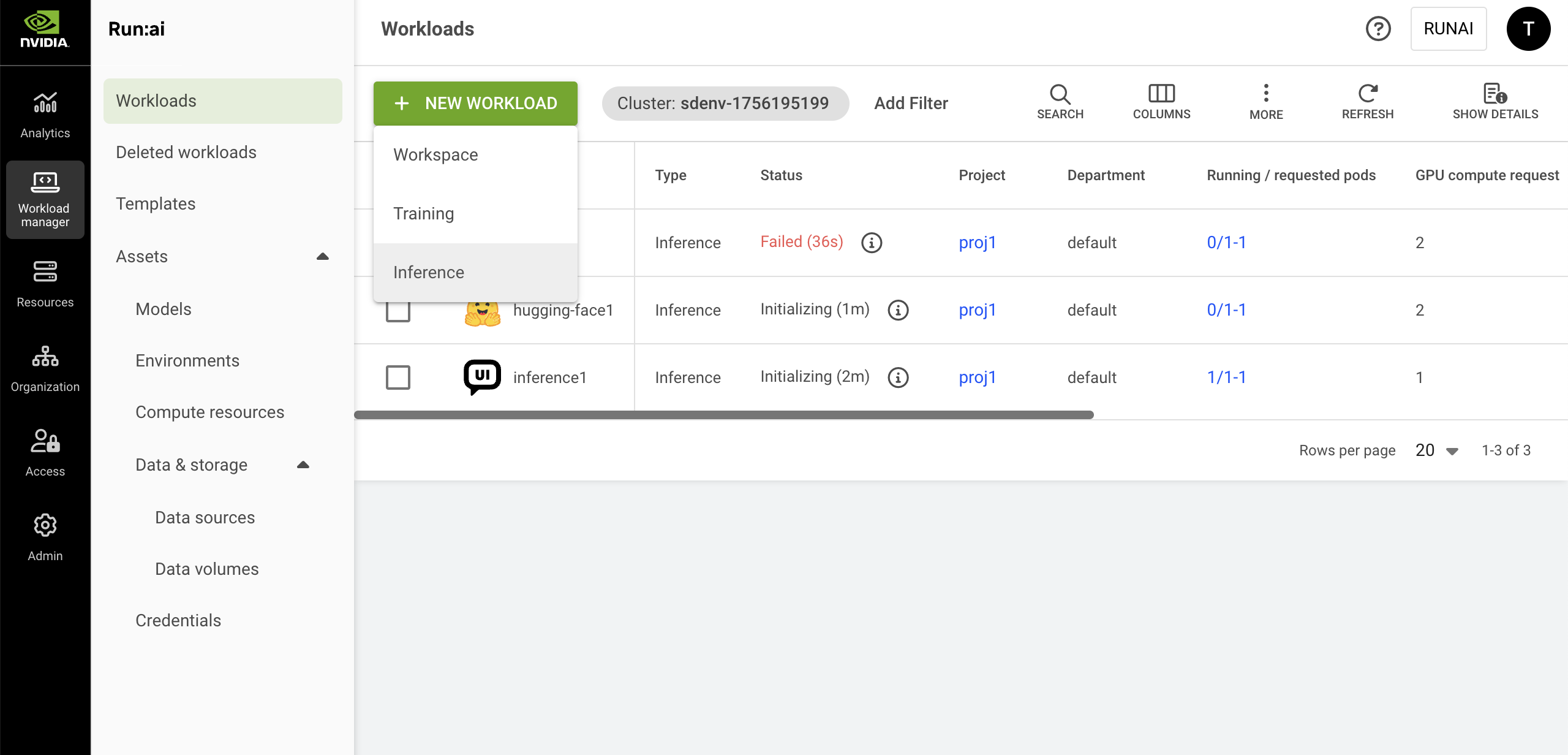
* Click **+NEW WORKLOAD** and select **Inference** from the dropdown menu**.**
* Within the new form, select the **cluster** and **project**. To create a new project, click **+NEW PROJECT** and refer to [Projects ](/self-hosted/2.23/platform-management/aiinitiatives/organization/projects.md)for a step-by-step guide.
* Select a [**template**](/self-hosted/2.23/workloads-in-nvidia-run-ai/workload-templates/inference-templates/hugging-face-inference-templates.md) or **Start from scratch** to launch a new workload quickly. You can use a workload template to populate the workload advanced setup form with predefined configuration values. You can still modify the populated fields before submitting the workload. Any changes you make will apply only to the workload and will not be saved back to the original template.
* Select **Hugging Face** from the **Inference type** (if applicable)
* Enter a unique **name** for the workload. If the name already exists in the project, you will be requested to submit a different name.
* Click **CONTINUE**
### Setting Up an Environment
{% hint style="info" %}
**Note**
NGC public registry is disabled by default. If unavailable, your administrator must enable it under **General settings** → Workloads → NGC public registry. When the NGC public registry is disabled, only the **Image URL** field is available.
{% endhint %}
{% tabs %}
{% tab title="Initial setup" %}
1. Set the **model name** by selecting a model from the dropdown list or entering the model name as displayed in Hugging Face.
2. Set how to **access** Hugging Face by choosing one of the following:
* **Provide a token** by entering the personal access token obtained from [Hugging Face Account Settings](https://huggingface.co/) → Access Token
* **Select credential** from a predefined list of [**Shared secrets**](/self-hosted/2.23/workloads-in-nvidia-run-ai/assets/credentials.md#creating-secrets-in-advance) or **My Credentials**. My credentials are Generic secret credentials created via [User settings](/self-hosted/2.23/settings/user-settings/user-credentials.md). This credential must contain an **HF\_TOKEN** and must already exist in the same namespace as the workload. To obtain a token, go to [Hugging Face Account Settings](https://huggingface.co/) → Access Token, then generate or copy an existing token.
* To add a new **Generic secret** credential:
* Click **+NEW CREDENTIALS**
* Enter a **name**
* The **key** is set to `HF_TOKEN` and cannot be changed
* Enter a **value** - your ``
* Click **CREATE CREDENTIAL**
When created, the credential is also saved under **User settings** → Credentials, where it can be reused in future workloads.
3. Set the set the **server type** that runs the model - [**vLLM** ](https://docs.vllm.ai/en/latest/models/supported_models.html)or [**TGI**](https://huggingface.co/docs/text-generation-inference/en/supported_models)**.**
4. Set who can access the inference **serving endpoint.** See [Accessing the inference workload](#accessing-the-inference-workload) for more details:
1. By default, **Public** is selected giving everyone within the network access to the endpoint with no authentication
2. If you select **All authenticated users and applications**, access is given to everyone within the organization’s account that can log in (to NVIDIA Run:ai or SSO).
3. For **Specific group(s)**, enter **group names** as they appear in your identity provider. You must be a member of one of the groups listed to have access.
4. For **Specific user(s) and application(s)**, enter a valid user email or name. If you remove yourself, you will lose access.
{% endtab %}
{% tab title="Advanced setup" %}
**Load from existing setup**
1. Click the **load** icon. A side pane appears, displaying a list of available environments. Select an environment from the list.
2. Optionally, customize any of the environment’s predefined fields as shown below. The changes will apply to this workload only and will not affect the selected environment.
3. Alternatively, click the **➕** icon in the side pane to create a new environment. For step-by-step instructions, see [Environments](/self-hosted/2.23/workloads-in-nvidia-run-ai/assets/environments.md).
**Provide your own settings**
Manually configure the settings below as needed. The changes will apply to this workload only.
**Configure environment**
1. Set the **environment image**:
* Select **Custom image** and add the **Image URL** or update the URL of the existing setup
* **Select from the NGC public registry** and choose the **image name** and **tag** from the dropdown.
2. Set the **image pull policy.** Set the **condition for pulling the image**. It is recommended to pull the image only if it's not already present on the host.
3. Set an inference **serving endpoint**. The connection protocol and the container port are defined within the environment:
* Select **HTTP** or **gRPC** and enter a corresponding **container port**
* Modify who can access the endpoint. See [Accessing the inference workload](#accessing-the-inference-workload) for more details:
* By default, **Public** is selected giving everyone within the network access to the endpoint with no authentication
* If you select **All authenticated users and applications**, access is given to everyone within the organization’s account that can log in (to NVIDIA Run:ai or SSO).
* For **Specific group(s)**, enter **group names** as they appear in your identity provider. You must be a member of one of the groups listed to have access.
* For **Specific user(s) and application(s)**, enter a valid user email or name. If you remove yourself, you will lose access.
4. Set the connection for your **tool(s)**. If you are loading from existing setup, the tools are configured as part of the environment.
* Select the connection type - **External URL** or **NodePort:**
* **Auto generate** - A unique URL / port is automatically created for each workload using the environment.
* **Custom URL** / **Custom port** - Manually define the URL or port. For custom port, make sure to enter a port between `30000` and `32767.` If the node port is already in use, the workload will fail and display an error message.
* Modify who can **access** the tool:
* By default, **All authenticated users** **and applications** is selected giving access to everyone within the organization’s account.
* For **Specific group(s)**, enter **group names** as they appear in your identity provider. You must be a member of one of the groups listed to have access to the tool.
* For **Specific user(s) and application(s)**, enter a valid user email or name. If you remove yourself, you will lose access to the tool.
5. Set the **command and arguments** for the container running the workload. If no command is added, the container will use the image’s default command (entry-point).
* Modify the existing command or click **+COMMAND & ARGUMENTS** to add a new command.
* Set multiple arguments separated by spaces, using the following format (e.g.: `--arg1=val1`).
6. Set the **environment variable(s)**:
* Modify the existing environment variable(s) or click **+ENVIRONMENT VARIABLE**. The existing environment variables may include instructions to guide you with entering the correct values.
* You can select **Custom** to define your own variable or choose from a predefined list of [**Secrets**](/self-hosted/2.23/workloads-in-nvidia-run-ai/assets/credentials.md#creating-secrets-in-advance), [**ConfigMaps**](/self-hosted/2.23/workloads-in-nvidia-run-ai/assets/datasources.md#creating-configmaps-in-advance) and **My credentials.** My credentials are Docker registry or Generic secret credentials created via [User settings](/self-hosted/2.23/settings/user-settings/user-credentials.md). This credential must already exist in the same namespace as the workload.
Some environment variables are automatically injected by NVIDIA Run:ai. See [Built-in workload environment variables](/self-hosted/2.23/workloads-in-nvidia-run-ai/workloads.md#built-in-workload-environment-variables) for more details.
7. Enter a path pointing to the **container's working directory**.
8. Set where the UID, GID, and supplementary groups for the container should be taken from. If you select **Custom**, you’ll need to manually enter the **UID,** **GID and** **Supplementary groups values**.
9. Select additional Linux capabilities for the container from the drop-down menu. This grants certain privileges to a container without granting all the root user's privileges.
{% endtab %}
{% endtabs %}
### Setting Up Compute Resources
{% hint style="info" %}
**Note**
* This form is available in both the initial and advanced setup forms. If you configure it during the initial setup, the values will be populated into the advanced setup. Any changes made during the advanced setup will override the initial configuration and be applied to the workload.
* GPU memory limit is disabled by default. If unavailable, your administrator must enable it under **General settings** → Resources → GPU resource optimization.
{% endhint %}
**Load from existing setup**
1. Click the **load** icon. A side pane appears, displaying a list of available compute resources. Select a compute resource from the list.
2. Optionally, customize any of the compute resource's predefined fields as shown below. The changes will apply to this workload only and will not affect the selected compute resource.
3. Alternatively, click the **➕** icon in the side pane to create a new compute resource. For step-by-step instructions, see [Compute resources](/self-hosted/2.23/workloads-in-nvidia-run-ai/assets/compute-resources.md).
**Provide your own settings**
Manually configure the settings below as needed. The changes will apply to this workload only.
**Configure compute resources**
1. Set the number of **GPU devices** per pod (physical GPUs).
2. Enable **GPU fractioning** to set the GPU memory per device using either a fraction of a GPU device’s memory **(% of device)** or a GPU memory unit **(MB/GB)**:
* **Request** - The minimum GPU memory allocated per device. Each pod in the workload receives at least this amount per device it uses.
* **Limit** - The maximum GPU memory allocated per device. Each pod in the workload receives **at most** this amount of GPU memory for each device(s) the pod utilizes. This is disabled by default, to enable see the above note.
3. Set the **CPU resources**
* Set **CPU compute resources** per pod by choosing the unit (**cores** or **millicores**):
* **Request** - The minimum amount of CPU compute provisioned per pod. Each running pod receives this amount of CPU compute.
* **Limit** - The maximum amount of CPU compute a pod can use. Each pod receives **at most** this amount of CPU compute. By default, the limit is set to **Auto** which means that the pod may consume up to the node's maximum available CPU compute resources.
* Set the **CPU memory per pod** by selecting the unit (**MB** or **GB**):
* **Request** - The minimum amount of CPU memory provisioned per pod. Each running pod receives this amount of CPU memory.
* **Limit** - The maximum amount of CPU memory a pod can use. Each pod receives at most this amount of CPU memory. By default, the limit is set to **Auto** which means that the pod may consume up to the node's maximum available CPU memory resources.
4. Set **extended resource(s)**
* Enable **Increase shared memory size** to allow the shared memory size available to the pod to increase from the default 64MB to the node's total available memory or the CPU memory limit, if set above.
* Click **+EXTENDED RESOURCES** to add resource/quantity pairs. For more information on how to set extended resources, see the [Extended resources](https://kubernetes.io/docs/tasks/configure-pod-container/extended-resource/) and [Quantity](https://kubernetes.io/docs/reference/kubernetes-api/common-definitions/quantity/) guides.
5. Set the **minimum and maximum** number of replicas to be scaled up and down to meet the changing demands of inference services:
* If the number of minimum and maximum replicas are different, autoscaling will be triggered and you'll need to set **conditions for creating a new replica**. A replica will be created every time a condition is met. When a condition is no longer met after a replica was created, the replica will be automatically deleted to save resources.
* Select one of the **variables to set** the conditions for creating a new replica. The variable's values will be monitored via the container's port. When you set a **value**, this value is the threshold at which autoscaling is triggered.
6. Set when the replicas should be automatically **scaled down to zero**. This allows compute resources to be freed up when the model is inactive (i.e., there are no requests being sent). Automatic scaling to zero is enabled only when the minimum number of replicas in the previous step is set to 0.
7. Set the **order of priority** for the **node pools** on which the Scheduler tries to run the workload. When a workload is created, the Scheduler will try to run it on the first node pool on the list. If the node pool doesn't have free resources, the Scheduler will move on to the next one until it finds one that is available:
* Drag and drop them to change the order, remove unwanted ones, or reset to the default order defined in the project.
* Click **+NODE POOL** to add a new node pool from the list of node pools that were defined on the cluster. To configure a new node pool and for additional information, see [Node pools](/self-hosted/2.23/platform-management/aiinitiatives/resources/node-pools.md).
8. Select a **node affinity** to schedule the workload on a specific node type. If the administrator added a ‘[node type (affinity)](/self-hosted/2.23/platform-management/policies/scheduling-rules.md#node-type-affinity)’ scheduling rule to the project/department, then this field is mandatory. Otherwise, entering a node type (affinity) is optional. [Nodes must be tagged](/self-hosted/2.23/platform-management/policies/scheduling-rules.md#labelling-nodes-for-node-types-grouping) with a label that matches the node type key and value.
9. Click **+TOLERATION** to allow the workload to be scheduled on a node with a matching taint. Select the **operator** and the **effect**:
* If you select **Exists**, the effect will be applied if the key exists on the node.
* If you select **Equals,** the effect will be applied if the key and the value set match the value on the node.
### Setting Up Data & Storage
{% hint style="info" %}
**Note**
* **Advanced setup** - Data volumes is enabled by default. If unavailable, contact your administrator to enable it under **General Settings** → Workloads → Data volumes.
* **Advanced setup** - If Data volumes is not enabled, **Data & storage** appears as **Data sources** only, and no data volumes will be available.
* S3 data sources are not supported for inference workloads.
{% endhint %}
{% tabs %}
{% tab title="Initial setup" %}
Select the data source that will serve as the **model store**. If the model is already stored on the selected data source it will be loaded from there automatically. Otherwise, it will be stored on the selected data source during the first workload deployment.
1. Click the **load** icon. A side pane appears, displaying a list of available data sources. Select a data source from the list.
2. Optionally, customize any of the data source's predefined fields. The changes will apply to this workload only and will not affect the selected data source:
* **Container path** - Enter the **container path** to set the **data target location**.
3. Alternatively, click the **➕** icon in the side pane to create a new data source. For step-by-step instructions, see [Data sources](/self-hosted/2.23/workloads-in-nvidia-run-ai/assets/datasources.md).
{% endtab %}
{% tab title="Advanced setup" %}
**Load from existing setup**
1. Click the **load** icon. A side pane appears, displaying a list of available data sources/volumes. Select a data source/volume from the list.
2. Optionally, customize any of the data source's predefined fields as shown below. The changes will apply to this workload only and will not affect the selected data source:
* **Container path** - Enter the **container path** to set the **data target location**.
* **ConfigMap** **sub-path** - Specify a **sub-path** (file/key) inside the ConfigMap to mount (for example, `app.properties`). This lets you mount a single file from an existing ConfigMap.
3. Alternatively, click the **➕** icon in the side pane to create a new data source/volume. For step-by-step instructions, see [Data sources](/self-hosted/2.23/workloads-in-nvidia-run-ai/assets/datasources.md) or [Data volumes](/self-hosted/2.23/workloads-in-nvidia-run-ai/assets/data-volumes.md).
**Configure data sources for a one-time configuration**
{% hint style="info" %}
**Note**
[PVCs](/self-hosted/2.23/workloads-in-nvidia-run-ai/assets/datasources.md#pvc), [Secrets](/self-hosted/2.23/workloads-in-nvidia-run-ai/assets/datasources.md#secret), [ConfigMaps](/self-hosted/2.23/workloads-in-nvidia-run-ai/assets/datasources.md#configmap) and [Data volumes](/self-hosted/2.23/workloads-in-nvidia-run-ai/assets/data-volumes.md) cannot be added as a one-time configuration.
{% endhint %}
1. Click the **➕** icon and choose the data source from the dropdown menu. You can add multiple data sources.
2. Once selected, set the **data origin** according to the required fields and enter the **container path** to set the **data target location**.
3. Select **Volume** to allocate a storage space to your workload that is persistent across restarts:
* Set the **Storage class** to **None** or select an existing storage class from the list. To add new storage classes, and for additional information, see [Kubernetes storage classes](/self-hosted/2.23/infrastructure-setup/procedures/shared-storage.md). If the administrator defined the storage class configuration, the rest of the fields will appear accordingly.
* Select one or more **access mode(s)** and define the **claim size** and its **units**.
* Select the **volume mode.** If you select **Filesystem** (default), the volume will be mounted as a filesystem, enabling the usage of directories and files. If you select **Block**, the volume is exposed as a block storage, which can be formatted or used directly by applications without a filesystem.
* Set the **Container path** with the volume target location.
{% endtab %}
{% endtabs %}
### Setting Up General Settings
{% hint style="info" %}
**Note**
The following general settings are optional.
{% endhint %}
1. Set the **workload priority**. Choose the appropriate priority level for the workload. Higher-priority workloads are scheduled before lower-priority ones.
2. Set the **workload initialization timeout.** This is the maximum amount of time the system will wait for the workload to start and become ready. If the workload does not start within this time, it will automatically fail. Enter a value between 5 seconds and 60 minutes. If you do not set a value, the default is taken from [Knative’s max-revision-timeout-seconds](https://knative.dev/docs/serving/configuration/config-defaults/#max-revision-timeout-seconds).
3. Set the **request timeout.** This defines the maximum time allowed to process an end-user request. If the system does not receive a response within this time, the request will be ignored. Enter a value between 5 seconds and 10 minutes. If you do not set a value, the default is taken from [Knative’s revision-timeout-seconds](https://knative.dev/docs/serving/configuration/config-defaults/#revision-timeout-seconds).
4. Set **annotations(s).** Kubernetes annotations are key-value pairs attached to the workload. They are used for storing additional descriptive metadata to enable documentation, monitoring and automation.
5. Set **labels(s).** Kubernetes labels are key-value pairs attached to the workload. They are used for categorizing to enable querying.
### Completing the Workload
1. Decide if you wish to fine-tune your setup with additional preferences including environment details and data sources. If yes, click on the dropdown next to **CREATE INFERENCE** and select **Advanced setup**. Follow the advanced setup steps above.
2. Before finalizing your workload, review your configurations and make any necessary adjustments.
3. Click **CREATE INFERENCE**
## Managing and Monitoring
After the inference workload is created, it is added to the [Workloads](/self-hosted/2.23/workloads-in-nvidia-run-ai/workloads.md) table, where it can be managed and monitored.
## Rolling Inference Updates
When deploying models and running inference workloads, you may need to update the workload configuration in real-time without disrupting critical services. Rolling inference updates allow you to submit changes to an existing inference workload, regardless of its current status (running, pending, etc.).
To update an inference workload, select the workload and click **UPDATE**. Only the settings listed below can be modified.
### Supported Updates
You can update various aspects of an inference workload, for example:
* **Container image** – Deploy a new model version.
* **Configuration parameters** – Modify command arguments and/or environment variables.
* **Compute resources** – Adjust resources to optimize performance.
* **Replica count and scaling policy** – Adapt to changing workload demands.
Throughout the update process, the workload remains operational, ensuring uninterrupted access for consumers (e.g., interacting with an LLM).
### Update Process
When an inference workload is updated, a **new revision** of the pod(s) is created based on the updated specification.
* Multiple updates can be submitted in succession, but only the latest update takes effect—previous updates are ignored.
* Once the new revision is fully deployed and running, traffic is redirected to it.
* The original revision is then terminated, and its resources are released back to the shared pool.
### GPU Quota Considerations
To successfully complete an inference workload update, the project must have sufficient free GPU quota. For example:
* **Existing workload** - The current inference workload is running with 3 replicas. Assuming each replica uses 1 GPU, the project is currently consuming 3 GPUs from its quota. For clarity, we'll refer to this as **Revision 1**.
* **Updated workload** - The workload is updated to use 8 replicas, which requires 8 additional GPUs during the update process. These GPUs must be available in the project's quota before the update can begin. Once the update is complete and the new revision is running, the 3 GPUs used by **Revision 1** are released.
### Monitoring Updates in the UI
In the UI, the **Workloads table** displays the configuration of the latest submitted update. For example, if you change the container image, the **image** column will display the name of updated image.
The **status** of the workload continues to reflect the operational state of the service the workload exposes. For instance, during an update, the workload status remains "Running" if the service is still being delivered to consumers. Hovering over the workload's **status** in the grid will display the phase message for the update, offering additional insights into its update state.
### Timeout and Resource Allocation
* As long as the update process is not completed, GPUs are not allocated to the replicas of the new revision. This prevents the allocation of idle GPUs so others will not be deprived using them. This behavior is supported using the Knative behavior described below.
* If the update process is not completed within the default time limit of 10 minutes, it will automatically stop. At that point, all replicas of the new revision will be removed, and the original revision will continue to run normally.
* The above default time limit for updates is configurable. Consider setting a longer duration if your workload requires extended time to pull the image due to its size, if the workload takes additional time to reach a 'READY' state due to a long initialization process, or if your cluster depends on autoscaling to allocate resources for new replicas. For example, to set the time limit to 30 minutes, you can run the following command:
```bash
kubectl patch ConfigMap config-deployment -n knative-serving --type='merge' -p '{"data": {"progress-deadline": "1800s"}}'
```
#### Inference Workloads With Knative
Starting in version 2.19, all pods of a single Knative revision are grouped under a single pod-group. This means that when a new Knative revision is created:
* It either succeeds in allocating the minimum number of pods; or
* It fails and moves into a pending state, to retry again later to allocate all pods with their resources.
The resources (GPUs, CPUs) are not occupied by a new Knative revision until it succeeds in allocating all pods. The older revision pods are then terminated and release their resources (GPUs, CPUs) back to the cluster to be used by other workloads.
## Accessing the Inference Workload
You can programmatically consume an inference workload via API by making direct calls to the serving endpoint, typically from other workloads or external integrations.
Once an inference workload is deployed, the serving endpoint URL appears in the **Connections** column of the inference workloads grid.
{% hint style="info" %}
**Note**
If the serving endpoint URL ends with `.svc.cluster.local`, it is accessible only within the cluster. To enable external access, your administrator must configure the cluster as described in the [inference requirements](/self-hosted/2.23/getting-started/installation/install-using-helm/system-requirements.md#inference) section.
{% endhint %}
Access to the inference serving API depends on how the serving endpoint access was configured when submitting the inference workload:
* If **Public** access is enabled, no authentication is required.
* If **restricted** access is configured:
* Authentication is performed either by a user (with a username/password), [user application](/self-hosted/2.23/settings/user-settings/user-applications.md) or [application](/self-hosted/2.23/infrastructure-setup/authentication/applications.md) (with client credentials).
* Authorization to access the endpoint is enforced based on user, application or group membership.
* Users relying on SSO should authenticate using their user applications.
Follow the below steps to obtain a token:
1. Use the [Tokens](https://run-ai-docs.nvidia.com/api/2.23/authentication-and-authorization/tokens) API with:
* `grantType: password` for specific users or groups
* `grantType: client_credentials` for applications and user applications
2. Use the obtained token to make API calls to the inference serving endpoint. For example:
```bash
#replace and (e.g. "meta-llama/Llama-3.1-8B-Instruct")
curl /v1/chat/completions \
-H "Content-Type: application/json" \
-H "Authorization: Bearer " \
-d '{
"model": "",
"messages": [{
"role": "user",
"content": "Write a short poem on AI"
}]
}'
```
## Using CLI
To view the available actions, see the inference workload [CLI v2 reference](/self-hosted/2.23/reference/cli/runai/runai_inference.md).
## Using API
* To view the available actions for creating an inference workload, see the [Inferences](https://run-ai-docs.nvidia.com/api/2.23/workloads/inferences) API reference.
* To view the available actions for rolling an inference update, see the [Update inference spec](https://run-ai-docs.nvidia.com/api/2.23/workloads/inferences#patch-api-v1-workloads-inferences-workloadid) API reference.
---
# Agent Instructions
This documentation is published with GitBook. GitBook is the documentation platform designed so that both humans and AI agents can read, navigate, and reason over technical content effectively. Learn more at gitbook.com.
## Querying This Documentation
If you need additional information that is not directly available in this page, you can query the documentation by asking a question.
Perform an HTTP GET request on the following URL with the `ask` and `goal` query parameters:
```
GET https://run-ai-docs.nvidia.com/self-hosted/2.23/workloads-in-nvidia-run-ai/using-inference/hugging-face-inference.md?ask=&goal=
```
`ask` is the immediate question: it should be specific, self-contained, and written in natural language.
`goal` is what the user is ultimately trying to achieve, the reason they need the answer. Sharing it helps GitBook give you a better, more relevant answer. A goal is most helpful when it describes the outcome the user wants rather than restating the question. For example, with `ask=how do I create an API token`, a goal like `automate deployments from our CI pipeline` lets GitBook tailor the answer to that use case.
The response will contain a direct answer to the question and relevant excerpts and sources from the documentation.
Use this mechanism when the answer is not explicitly present in the current page, you need clarification or additional context, or you want to retrieve related documentation sections.