# Workloads

This section explains the procedure for managing workloads.

## Workloads Table

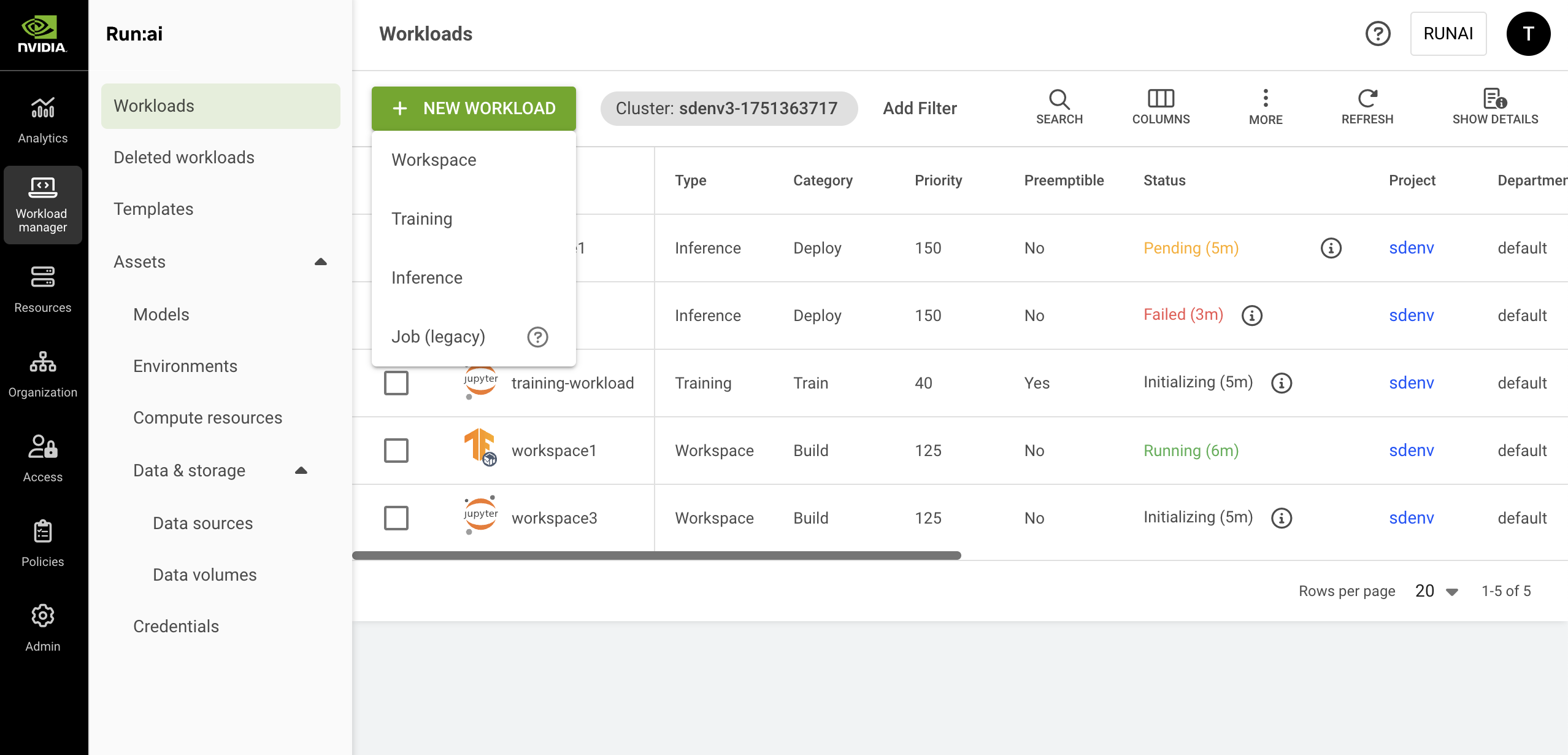
The Workloads table can be found under **Workload manager** in the NVIDIA Run:ai platform.

The workloads table provides a list of all the workloads scheduled on the NVIDIA Run:ai [Scheduler](https://run-ai-docs.nvidia.com/self-hosted/2.23/platform-management/runai-scheduler/scheduling/concepts-and-principles), and allows you to manage them.

<figure><img src="https://254436074-files.gitbook.io/~/files/v0/b/gitbook-x-prod.appspot.com/o/spaces%2FfvuZQSF7VCx1Azh0LF0H%2Fuploads%2Fgit-blob-05d8c1eed0bb513927cca08826d45aca7b7e76f2%2Fnew-workloads.png?alt=media" alt=""><figcaption></figcaption></figure>

The Workloads table consists of the following columns:

| Column                 | Description                                                                                                                                                                                                                                                                                                   |
| ---------------------- | ------------------------------------------------------------------------------------------------------------------------------------------------------------------------------------------------------------------------------------------------------------------------------------------------------------- |
| Workload               | The name of the workload                                                                                                                                                                                                                                                                                      |
| Type                   | The workload type                                                                                                                                                                                                                                                                                             |
| Category               | The [purpose](https://run-ai-docs.nvidia.com/self-hosted/2.23/platform-management/monitor-performance/workload-categories) of the workload - Default: Build, Train, or Deploy                                                                                                                                 |
| Priority               | The scheduling [priority](https://run-ai-docs.nvidia.com/self-hosted/2.23/platform-management/runai-scheduler/scheduling/workload-priority-control) assigned to the workload within its project                                                                                                               |
| Preemptible            | Is the workload [preemptible](https://run-ai-docs.nvidia.com/self-hosted/2.23/platform-management/runai-scheduler/scheduling/concepts-and-principles#priority-and-preemption) (Yes/no)                                                                                                                        |
| Status                 | The different [phases](#workload-status) in a workload lifecycle                                                                                                                                                                                                                                              |
| Project                | The project in which the workload runs                                                                                                                                                                                                                                                                        |
| Department             | The department that the workload is associated with. This column is visible only if the department toggle is enabled by your administrator.                                                                                                                                                                   |
| Created by             | The user who created the workload                                                                                                                                                                                                                                                                             |
| AI application         | The AI application associated with the workload                                                                                                                                                                                                                                                               |
| Node pool(s)           | The node pools utilized by the workload                                                                                                                                                                                                                                                                       |
| Running/requested pods | The number of running pods out of the requested                                                                                                                                                                                                                                                               |
| Requested runs         | The requested number of runs the workload must finish to be considered complete                                                                                                                                                                                                                               |
| Creation time          | The timestamp of when the workload was created                                                                                                                                                                                                                                                                |
| Completion time        | The timestamp the workload reached a terminal state (failed/completed)                                                                                                                                                                                                                                        |
| Total pending time     | The total time a workload spent in [Pending](#workload-status) state                                                                                                                                                                                                                                          |
| Total runtime          | The total cumulative time that the workload has spent in the Running phase since submission                                                                                                                                                                                                                   |
| Guaranteed time left   | A duration indicating how much time remains until the workload reaches its minimum guaranteed runtime. During this period, the workload is non-preemptible and cannot be interrupted by higher-priority workloads.                                                                                            |
| Connection(s)          | The method by which you can access and interact with the running workload. It's essentially the "doorway" through which you can reach and use the tools the workload provide. (E.g node port, external URL, etc). Click one of the values in the column to view the list of connections and their parameters. |
| Data source(s)         | Data resources used by the workload                                                                                                                                                                                                                                                                           |
| Image                  | The main container image                                                                                                                                                                                                                                                                                      |
| Workload architecture  | <p>Standard or distributed training:</p><ul><li>Standard - A single-process workload that runs on a single node</li><li>Distributed - A multi-process workload where processes coordinate across nodes (e.g., using MPI)</li></ul>                                                                            |
| GPU compute request    | Amount of GPU devices requested                                                                                                                                                                                                                                                                               |
| GPU compute allocation | Amount of GPU devices allocated                                                                                                                                                                                                                                                                               |
| GPU memory request     | Amount of GPU memory Requested                                                                                                                                                                                                                                                                                |
| GPU memory allocation  | Amount of GPU memory allocated                                                                                                                                                                                                                                                                                |
| Idle GPU devices       | The number of allocated GPU devices that have been idle for more than 5 minutes                                                                                                                                                                                                                               |
| CPU compute request    | Amount of CPU cores requested                                                                                                                                                                                                                                                                                 |
| CPU compute allocation | Amount of CPU cores allocated                                                                                                                                                                                                                                                                                 |
| CPU memory request     | Amount of CPU memory requested                                                                                                                                                                                                                                                                                |
| CPU memory allocation  | Amount of CPU memory allocated                                                                                                                                                                                                                                                                                |
| Cluster                | The cluster that the workload is associated with                                                                                                                                                                                                                                                              |

### Workload Status

The following table describes the different phases in a workload life cycle. The UI provides additional details for some of the below workload statuses which can be viewed by clicking the icon next to the status.

| Status       | Description                                                                                                                                                | Entry Condition                                                                                                                                            | Exit Condition                                                                                                                                                                                                           |
| ------------ | ---------------------------------------------------------------------------------------------------------------------------------------------------------- | ---------------------------------------------------------------------------------------------------------------------------------------------------------- | ------------------------------------------------------------------------------------------------------------------------------------------------------------------------------------------------------------------------ |
| Creating     | Workload setup is initiated in the cluster. Resources and pods are now provisioning.                                                                       | A workload is submitted                                                                                                                                    | A multi-pod group is created                                                                                                                                                                                             |
| Pending      | Workload is queued and awaiting resource allocation                                                                                                        | A pod group exists                                                                                                                                         | All pods are scheduled                                                                                                                                                                                                   |
| Initializing | Workload is retrieving images, starting containers, and preparing pods                                                                                     | All pods are scheduled                                                                                                                                     | All pods are initialized or a failure to initialize is detected                                                                                                                                                          |
| Running      | Workload is currently in progress with all pods operational                                                                                                | All pods initialized (all containers in pods are ready)                                                                                                    | Workload completion or failure                                                                                                                                                                                           |
| Resuming     | Workload is transitioning back to active after being suspended                                                                                             | A previously suspended workload is resumed by the user                                                                                                     | All pods are created                                                                                                                                                                                                     |
| Degraded     | Pods may not align with specifications, network services might be incomplete, or persistent volumes may be detached. Check your logs for specific details. | <ul><li><strong>Pending</strong> - All pods are running but have issues.</li><li><strong>Running</strong> - All pods are running with no issues.</li></ul> | <ul><li><strong>Running</strong> - All resources are OK.</li><li><strong>Completed</strong> - Workload finished with fewer resources</li><li><strong>Failed</strong> - Workload failure or user-defined rules.</li></ul> |
| Deleting     | Workload and its associated resources are being decommissioned from the cluster                                                                            | Deleting the workload                                                                                                                                      | Resources are fully deleted                                                                                                                                                                                              |
| Suspending   | Workload is being suspended and its pods are being deleted                                                                                                 | User initiates a suspend action                                                                                                                            | All pods are terminated and the workload is no longer active                                                                                                                                                             |
| Stopped      | Workload is on hold and resources are intact but inactive                                                                                                  | Stopping the workload without deleting resources                                                                                                           | Transitioning back to the initializing phase or proceeding to deleting the workload                                                                                                                                      |
| Failed       | Image retrieval failed or containers experienced a crash. Check your logs for specific details                                                             | An error occurs preventing the successful completion of the workload                                                                                       | Terminal state                                                                                                                                                                                                           |
| Completed    | Workload has successfully finished its execution                                                                                                           | The workload has finished processing without errors                                                                                                        | Terminal state                                                                                                                                                                                                           |

### Pods Associated with the Workload

Click one of the values in the Running/requested pods column, to view the list of pods and their parameters.

| Column                 | Description                                                                   |
| ---------------------- | ----------------------------------------------------------------------------- |
| Pod                    | Pod name                                                                      |
| Status                 | Pod lifecycle stages                                                          |
| Node                   | The node on which the pod resides                                             |
| Node pool              | The node pool in which the pod resides (applicable if node pools are enabled) |
| Image                  | The pod’s main image                                                          |
| GPU compute allocation | Amount of GPU devices allocated for the pod                                   |
| GPU memory allocation  | Amount of GPU memory allocated for the pod                                    |

### Connections Associated with the Workload

A connection refers to the method by which you can access and interact with the running workloads. It is essentially the "doorway" through which you can reach and use the applications (tools) these workloads provide.

Click one of the values in the Connection(s) column, to view the list of connections and their parameters. Connections are network interfaces that communicate with the application running in the workload. Connections are either the URL the application exposes or the IP and the port of the node that the workload is running on.

| Column          | Description                                                                |
| --------------- | -------------------------------------------------------------------------- |
| Name            | The name of the application running on the workload                        |
| Connection type | The network connection type selected for the workload                      |
| Access          | Who is authorized to use this connection (everyone, specific groups/users) |
| Address         | The connection URL                                                         |
| Copy button     | Copy URL to clipboard                                                      |
| Connect button  | Enabled only for supported tools                                           |

### Data Sources Associated with the Workload

Click one of the values in the Data source(s) column to view the list of data sources and their parameters.

| Column      | Description                                                                                                           |
| ----------- | --------------------------------------------------------------------------------------------------------------------- |
| Data source | The name of the data source mounted to the workload                                                                   |
| Type        | The [data source type](https://run-ai-docs.nvidia.com/self-hosted/2.23/workloads-in-nvidia-run-ai/assets/datasources) |

### Customizing the Table View

* Filter - Click ADD FILTER, select the column to filter by, and enter the filter values
* Search - Click SEARCH and type the value to search by
* Sort - Click each column header to sort by
* Column selection - Click COLUMNS and select the columns to display in the table
* Download table - Click MORE and then Click Download as CSV. Export to CSV is limited to 20,000 rows.
* Refresh - Click REFRESH to update the table with the latest data
* Show/Hide details - Click to view additional information on the selected row

### Show/Hide Details

Click a row in the Workloads table and then click the SHOW DETAILS button at the upper-right side of the action bar. The details pane appears, presenting the following tabs:

#### Event History

Displays the workload status over time. It displays events describing the workload lifecycle and alerts on notable events. Use the filter to search through the history for specific events.

#### Metrics

The Metrics screen contains a dropdown allowing you to switch between the following metrics views:

* **Resource utilization** - Displays general GPU, CPU and network metrics
* **GPU profiling** - Shows additional NVIDIA-specific metrics
* **Inference** - Displays inference workload metrics including throughput, latency, and replica counts
* **NVIDIA NIM** - Displays NIM-specific workload metrics such as request concurrency, request counts, time to first token (TTFT), latency percentiles, and GPU KV-cache utilization

{% hint style="info" %}
**Note**

GPU profiling metrics are disabled by default. If unavailable, your administrator must enable it under **General settings** → Analytics → GPU profiling metrics. Before enabling, the administrator must configure GPU profiling through the DCGM Exporter and NVIDIA Run:ai Prometheus integration. For configuration steps, see [GPU profiling metrics](https://run-ai-docs.nvidia.com/self-hosted/2.23/platform-management/monitor-performance/gpu-profiling-metrics).
{% endhint %}

#### Resource Utilization

* **GPU utilization**\
  Per GPU graph and an average of all GPUs graph, all on the same chart, along an adjustable period allows you to see the trends of all GPUs compute utilization (percentage of GPU compute) in this node.
* **GPU memory utilization**\
  Per GPU graph and an average of all GPUs graph, all on the same chart, along an adjustable period allows you to see the trends of all GPUs memory usage (percentage of the GPU memory) in this node.
* **CPU compute utilization**\
  The average of all CPUs’ cores compute utilization graph, along an adjustable period allows you to see the trends of CPU compute utilization (percentage of CPU compute) in this node.
* **CPU memory utilization**\
  The utilization of all CPUs memory in a single graph, along an adjustable period allows you to see the trends of CPU memory utilization (percentage of CPU memory) in this node.
* **CPU memory usage**\
  The usage of all CPUs memory in a single graph, along an adjustable period allows you to see the trends of CPU memory usage (in GB or MB of CPU memory) in this node.
* **NVLink bandwidth total**\
  The rate of data transmitted / received over NVLink, not including protocol headers, in bytes per second. The value represents an average over a time interval and is not an instantaneous value. The rate is averaged over the time interval. For example, if 1 GB of data is transferred over 1 second, the rate is 1 GB/s regardless of the data transferred at a constant rate or in bursts. The theoretical maximum NVLink Gen2 bandwidth is 25 GB/s per link per direction.

#### GPU Profiling

Select **GPU profiling** from the dropdown to view extended GPU device-level metrics such as memory bandwidth, SM occupancy, and other data.

* For the full list of supported metrics, see [Metrics and telemetry](https://run-ai-docs.nvidia.com/self-hosted/2.23/platform-management/monitor-performance/metrics#gpu-profiling).
* For definitions and technical descriptions, refer to the [NVIDIA documentation](https://docs.nvidia.com/datacenter/dcgm/latest/user-guide/feature-overview.html#profiling-metrics).

#### Inference

For inference workloads, select **Inference** from the dropdown to view dedicated inference metrics:

* **Throughput**\
  Displays the total number of inference requests per second (RPS). The chart shows request throughput over time, helping you analyze traffic patterns and scaling needs.
* **Latency**\
  Shows the average response time for inference requests in milliseconds. Use this chart to track performance, identify bottlenecks, and optimize model serving.
* **Replicas**\
  Displays the desired vs. actual number of replicas for inference workloads. This helps you understand autoscaling behavior and whether workloads are scaling as expected.

#### NVIDIA NIM

For NVIDIA NIM workloads, select **NVIDIA NIM** from the dropdown to view dedicated NIM-specific metrics:

* **Request concurrency by status**\
  Shows the number of inference requests that are currently running or waiting, along with the model’s maximum allowed concurrency.
* **Request count by status**\
  Displays the total number of inference requests completed over time, categorized as succeeded or failed.
* **Time to first token (TTFT) by percentiles**\
  Tracks how long it takes for the model to generate the first token of a response, with percentile breakdowns (p50, p90, p99) for performance analysis.
* **End to end request latency by percentiles**\
  Measures the total response time from request submission to completion, with percentile values (p50, p90, p99) to help identify latency patterns.
* **GPU KV cache utilization**\
  Reports the percentage of GPU key-value cache currently in use over time.

#### Navigating the Graphs

* For GPUs charts - Click the GPU legend on the right-hand side of the chart, to activate or deactivate any of the GPU lines.
* You can click the date picker to change the presented period
* You can use your mouse to mark a sub-period in the graph for zooming in, and use **Reset zoom** to go back to the preset period
* Changes in the period affect all graphs on this screen.

#### Logs

Workload events are ordered in chronological order. The logs contain events from the workload’s lifecycle to help monitor and debug issues.

You can view logs per pod and per container. Use the dropdown menus to select the specific pod and the container within the pod you want to inspect.

Logs can also be downloaded for offline review. Each downloaded log file includes a unique name in the format:

```bash
<workload_name>_<pod_name>_<container_name>_<timestamp>.log
```

{% hint style="info" %}
**Note**

Logs are available only while the workload is in a non-terminal state. Once the workload completes or fails, logs are no longer accessible.
{% endhint %}

## Adding a New Workload

Before starting, make sure you have created a[ project](https://run-ai-docs.nvidia.com/self-hosted/2.23/platform-management/aiinitiatives/organization/projects) or have one created for you to work with workloads.

To create a new workload:

1. Click **+NEW WORKLOAD**
2. Select a workload type - Follow the links below to view the step-by-step guide for each workload type:
   * [Workspace](https://run-ai-docs.nvidia.com/self-hosted/2.23/workloads-in-nvidia-run-ai/using-workspaces/running-workspace) - Used for data preparation and model-building tasks.
   * [Training](https://run-ai-docs.nvidia.com/self-hosted/2.23/workloads-in-nvidia-run-ai/using-training) - Used for standard training or distributed tasks of all sorts
   * [Inference](https://run-ai-docs.nvidia.com/self-hosted/2.23/workloads-in-nvidia-run-ai/using-inference/custom-inference) - Used for inference and serving tasks
3. Click **CREATE WORKLOAD**

## Stopping a Workload

Stopping one or more workloads kills their pods and releases the associated resources.

1. Select **one or more workloads** from the list
2. Click **Stop**

## Running a Workload

Running one or more workloads spins up new pods and resumes the workload execution from where it was stopped.

1. Select **one or more workloads** that you want to resume
2. Click **RUN**

## Connecting to a Workload

To connect to an application running in the workload (for example, Jupyter Notebook)

1. Select the workload you want to connect
2. Click **CONNECT**
   * If the workload has only one configured tool, the connection opens directly in a new browser tab
   * If multiple tools are configured, a dropdown list appears where you can select the desired tool
3. The selected tool is opened in a new tab on your browser

## Copying a Workload

1. Select the workload you want to copy
2. Click **MAKE A COPY**
3. Enter a **name** for the workload. The name must be unique.
4. Update the workload and click **CREATE WORKLOAD**

## Deleting a Workload

1. Select the workload you want to delete
2. Click **DELETE**
3. On the dialog, click **DELETE** to confirm the deletion

{% hint style="info" %}
**Note**

Once a workload is deleted, it appears under **Workload manager** -> Deleted workloads. Deleted workloads remain available for 14 days before being permanently removed.
{% endhint %}

## Managing Workload Properties <a href="#managing-workload-properties" id="managing-workload-properties"></a>

Administrators can change the default priority and category assigned to a workload type by updating the mapping using the [NVIDIA Run:ai API](https://run-ai-docs.nvidia.com/api/2.23/):

* To update the priority mapping, see [Workload priority control](https://run-ai-docs.nvidia.com/self-hosted/2.23/platform-management/runai-scheduler/scheduling/workload-priority-control#updating-the-default-priority-mapping)
* To update the category mapping, see [Monitor workloads by category](https://run-ai-docs.nvidia.com/self-hosted/2.23/platform-management/monitor-performance/workload-categories#update-the-default-category-mapping)

## Using API

Go to the [Workloads](https://run-ai-docs.nvidia.com/api/2.23/workloads/workloads) API reference to view the available actions.

## Built-in Workload Environment Variables

### Platform-Defined Variables

When a workload runs on the NVIDIA Run:ai platform, a number of environment variables are automatically injected into every container. These variables provide metadata about the workload’s context, such as the project it belongs to, the workload name, and a unique run identifier.

<table><thead><tr><th width="263.6015625">Variable</th><th>Description</th></tr></thead><tbody><tr><td><code>RUNAI_PROJECT</code></td><td>The NVIDIA Run:ai project (namespace) in which the workload runs</td></tr><tr><td><code>RUNAI_JOB_NAME</code></td><td>The logical name of the workload as submitted</td></tr><tr><td><code>RUNAI_JOB_UUID</code></td><td>A unique identifier for the workload. If a workload is deleted and recreated with the same name, the UUID will be different.</td></tr><tr><td><code>RUNAI_NUM_OF_GPUS</code></td><td>Number of GPUs allocated to the current container</td></tr><tr><td><code>NODE_NAME</code></td><td>The node where the container is currently running</td></tr><tr><td><code>RUNAI_MPI_NUM_WORKERS</code></td><td>The number of worker pods participating in the MPI distributed workload</td></tr></tbody></table>

#### Usage Example in Python

```python
import os

jobName = os.environ['JOB_NAME']
jobUUID = os.environ['JOB_UUID']
```

### Framework-Defined Environment Variables

In addition to NVIDIA Run:ai’s built-in environment variables, distributed training frameworks inject their own variables to coordinate communication, rank assignment, and cluster topology. These variables differ by framework and are automatically managed by the training operator (for example, Kubeflow’s Training Operator or MPI Operator). The following table lists some of the most common framework-defined variables supported for distributed training. For a complete list of environment variables, refer to the official documentation for each framework.

| Framework                                                  | Common Environment Variables                                 | Description                                                                     |
| ---------------------------------------------------------- | ------------------------------------------------------------ | ------------------------------------------------------------------------------- |
| [TensorFlow](https://www.tensorflow.org/guide)             | `TF_CONFIG`                                                  | Defines the cluster topology and the role (chief, worker, ps) of each process   |
| [PyTorch](https://docs.pytorch.org/docs/stable/index.html) | `RANK`, `WORLD_SIZE`, `MASTER_ADDR`, `MASTER_PORT`           | Used for initializing distributed process groups and inter-worker communication |
| [XGBoost](https://xgboost.readthedocs.io/en/stable/)       | `DMLC_TRACKER_URI`, `DMLC_ROLE`, `DMLC_NUM_WORKER`           | Used by the XGBoost distributed training tracker for coordination between nodes |
| [MPI Operator](https://github.com/kubeflow/mpi-operator)   | `OMPI_COMM_WORLD_RANK`, `OMPI_COMM_WORLD_SIZE`, `OMPI_MCA_*` | Standard OpenMPI variables for multi-process coordination                       |
| [JAX](https://docs.jax.dev/en/latest/)                     | `XLA_FLAGS`, `TPU_VISIBLE_DEVICES`, `CUDA_VISIBLE_DEVICES`   | Control device visibility and XLA backend behavior                              |

## Troubleshooting

To understand the condition of the workload, review the workload status in the Workload table. For more information, see check the [workload’s event history](https://run-ai-docs.nvidia.com/self-hosted/2.23/infrastructure-setup/procedures/event-history).

Listed below are a number of known issues when working with workloads and how to fix them:

| Issue                                                                                            | Mediation                                                                                                                                                                                                                                                                                                                                          |
| ------------------------------------------------------------------------------------------------ | -------------------------------------------------------------------------------------------------------------------------------------------------------------------------------------------------------------------------------------------------------------------------------------------------------------------------------------------------- |
| Cluster connectivity issues (there are issues with your connection to the cluster error message) | <ul><li>Verify that you are on a network that has been granted access to the cluster.</li><li>Reach out to your cluster admin for instructions on verifying this.</li><li>If you are an admin, see the <a href="../../infrastructure-setup/procedures/clusters#troubleshooting">troubleshooting</a> section in the cluster documentation</li></ul> |
| Workload in “Initializing” status for some time                                                  | <ul><li>Check that you have access to the Container image registry.</li><li>Check the statuses of the pods in the <a href="#pods-associated-with-workload">pods’ dialog</a>.</li><li>Check the event history for more details</li></ul>                                                                                                            |
| Workload has been pending for some time                                                          | <ul><li>Check that you have the required quota.</li><li>Check the project’s available quota in the project dialog.</li><li>Check that all services needed to run are bound to the workload.</li><li>Check the event history for more details.</li></ul>                                                                                            |
| PVCs created using the K8s API or `kubectl` are not visible or mountable in NVIDIA Run:ai        | <p>This is by design.</p><ol><li>Create a new data source of type PVC in the NVIDIA Run:ai UI</li><li>In the Data mount section, select Existing PVC</li><li>Select the PVC you created via the K8S API</li></ol><p>You are now able to select and mount this PVC in your NVIDIA Run:ai submitted workloads.</p>                                   |
| Workload is not visible in the UI                                                                | <ul><li>Check that the workload hasn’t been deleted.</li><li>See the “Deleted” tab in the workloads view</li></ul>                                                                                                                                                                                                                                 |


---

# Agent Instructions: Querying This Documentation

If you need additional information that is not directly available in this page, you can query the documentation dynamically by asking a question.

Perform an HTTP GET request on the current page URL with the `ask` query parameter:

```
GET https://run-ai-docs.nvidia.com/self-hosted/2.23/workloads-in-nvidia-run-ai/workloads.md?ask=<question>
```

The question should be specific, self-contained, and written in natural language.
The response will contain a direct answer to the question and relevant excerpts and sources from the documentation.

Use this mechanism when the answer is not explicitly present in the current page, you need clarification or additional context, or you want to retrieve related documentation sections.
