Submit Supported Workload Types via YAML
This guide describes how to run supported workload types using the NVIDIA Run:ai UI by submitting a YAML manifest directly.
To learn more about workload types in NVIDIA Run:ai and determine what is the most suitable workload type for your goals, see Workload types and features.

Before You Start
Make sure you have created a project or have one created for you.
Note
Via YAML submission is enabled by default. If you do not see it in the menu, contact your administrator to enable it under General settings → Workloads → Submit supported workload types via YAML.
Supported Workload Types
Supported workload types include a broad range of workloads from the ML and Kubernetes ecosystem that are already registered as workload types in the platform and ready to use. See Supported workload types for more details.
Your administrator can also register additional workload types for your organization. See Registering new workload types for more details.
By default, workload types are grouped into Build, Train and Deploy categories. These categories determine how the workload is scheduled and prioritized within a project and how they are grouped for monitoring and reporting.
Note
Some supported workload types require additional installation or cluster preparation before they can be used. Refer to the documentation for each workload type for specific prerequisites.
Workload Priority and Preemption
By default, supported workload types are assigned a priority and preemptibility based on their workload type. These defaults determine how workloads are scheduled relative to others within the same project, whether they can use over-quota resources, and whether they may be interrupted once running. You can override the defaults by configuring priority and preemptibility. For more details on the default values per workload type, see Workload types default.
Creating a New Workload
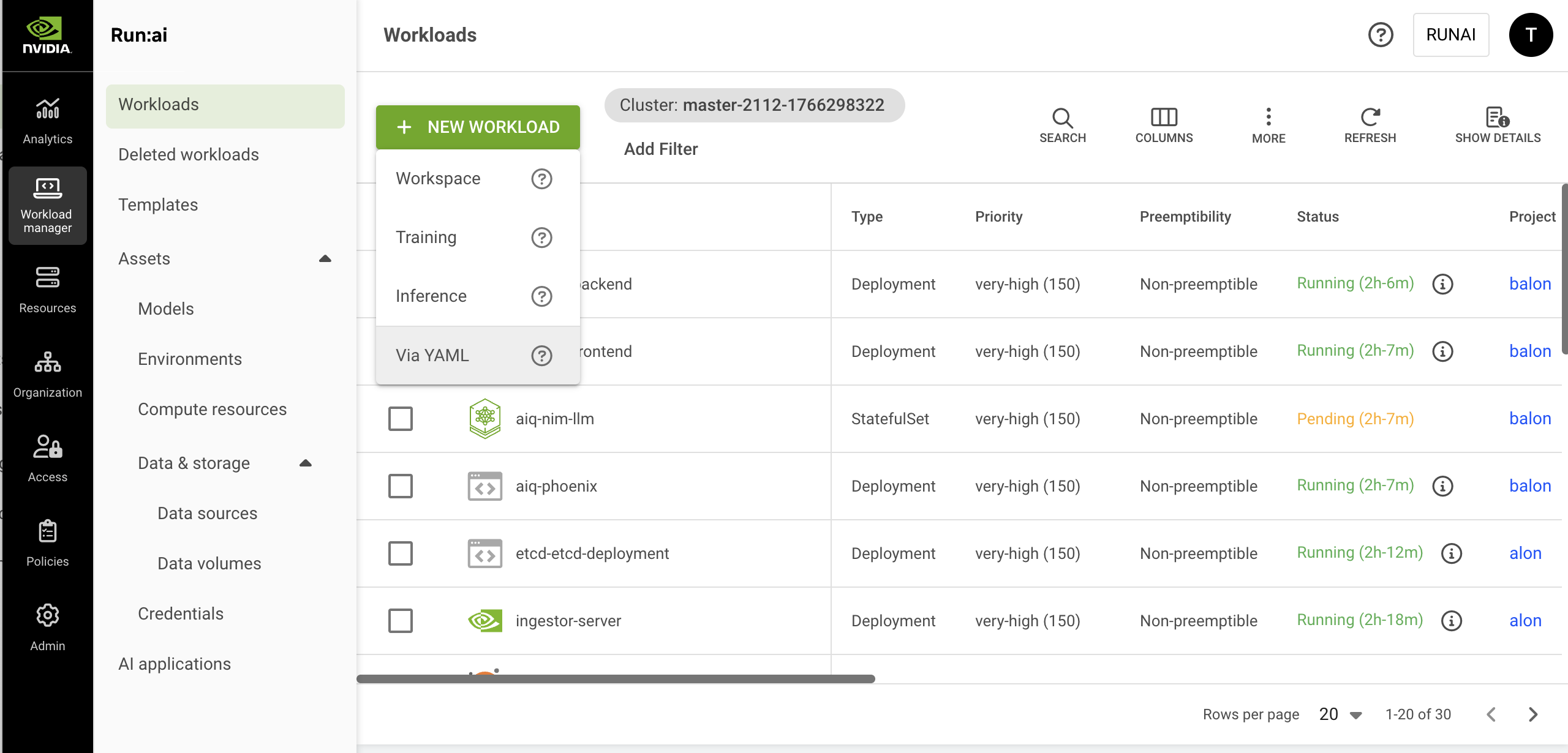
To create a workload, go to Workload manager → Workloads.
Click + NEW WORKLOAD and select Via YAML from the dropdown.
In the YAML submission form, select the cluster where the workload will run.
Upload or paste your YAML manifest. Hover over Supported workload types to view a full list of available workloads:
To upload a file, click UPLOAD YAML FILE and choose your YAML.
To paste the YAML, insert it directly into the editor.
Select a project:
If the
namespaceis not defined in the YAML, select a project from the submission form. To create a new project, click +NEW PROJECT and refer to Projects for a step-by-step guide.If a project is selected in the form, it overrides the
namespacedefined in the YAML.Alternatively, set the project directly in the YAML using the
metadata.namespacefield.
Set whether the workload may be interrupted. Change this setting only if you want to override the default preemptibility defined for the workload type. Non-preemptible workloads use the project's available GPU quota and will not be interrupted once they start running. Preemptible workloads may be interrupted if resources are needed for higher priority workloads:
In the UI, select Preemptible or Non-preemptible from the dropdown.
In the YAML, set the following label under
metadata.labels:
Set the workload priority. Change this setting only if you want to override the default preemptibility defined for the workload type. Higher priority workloads are scheduled before lower-priority ones:
In the UI, select a priority from the dropdown.
In the YAML, set
priorityClassNameundermetadata.labelsusing one of the supported values:very-low,low,medium-low,medium,medium-high,high,very-high:
Click CREATE WORKLOAD
Managing and Monitoring
After the workload is created, it is added to the Workloads table, where it can be managed and monitored.
Using CLI
To view the available actions, see the CLI v2 reference.
Using API
To view the available actions, see the Workloads V2 API reference.
Troubleshooting
Authentication and permissions
Description: You may not be authorized to submit/manage workloads in the selected scope, or your token issuer is not recognized.
Cluster or API compatibility
Description: The API endpoint you used is not compatible with the target cluster version.
Priority or category not available
Description: The selected priority or category isn’t supported in the target cluster.
Workload name validation
Description: The workload name is missing, invalid, too long, or already exists.
Workload type (GVK) not found or not ready in the cluster
Description: NVIDIA Run:ai can’t map your manifest’s GVK (group/version/kind) to a workload type that is registered and ready in the selected cluster. See Supported workload types.
Last updated